
Embed Widget on Wix
Add the Billy checkout to a Wix site, either linked from a button or opened in a Wix Lightbox pop-up.
Got a website built with Wix? Great news, adding your Billy checkout to it is quick and easy!
Billy's widget lets your fans buy tickets directly on your site, no redirects, no confusion, no tech headaches.
You can choose between two simple options
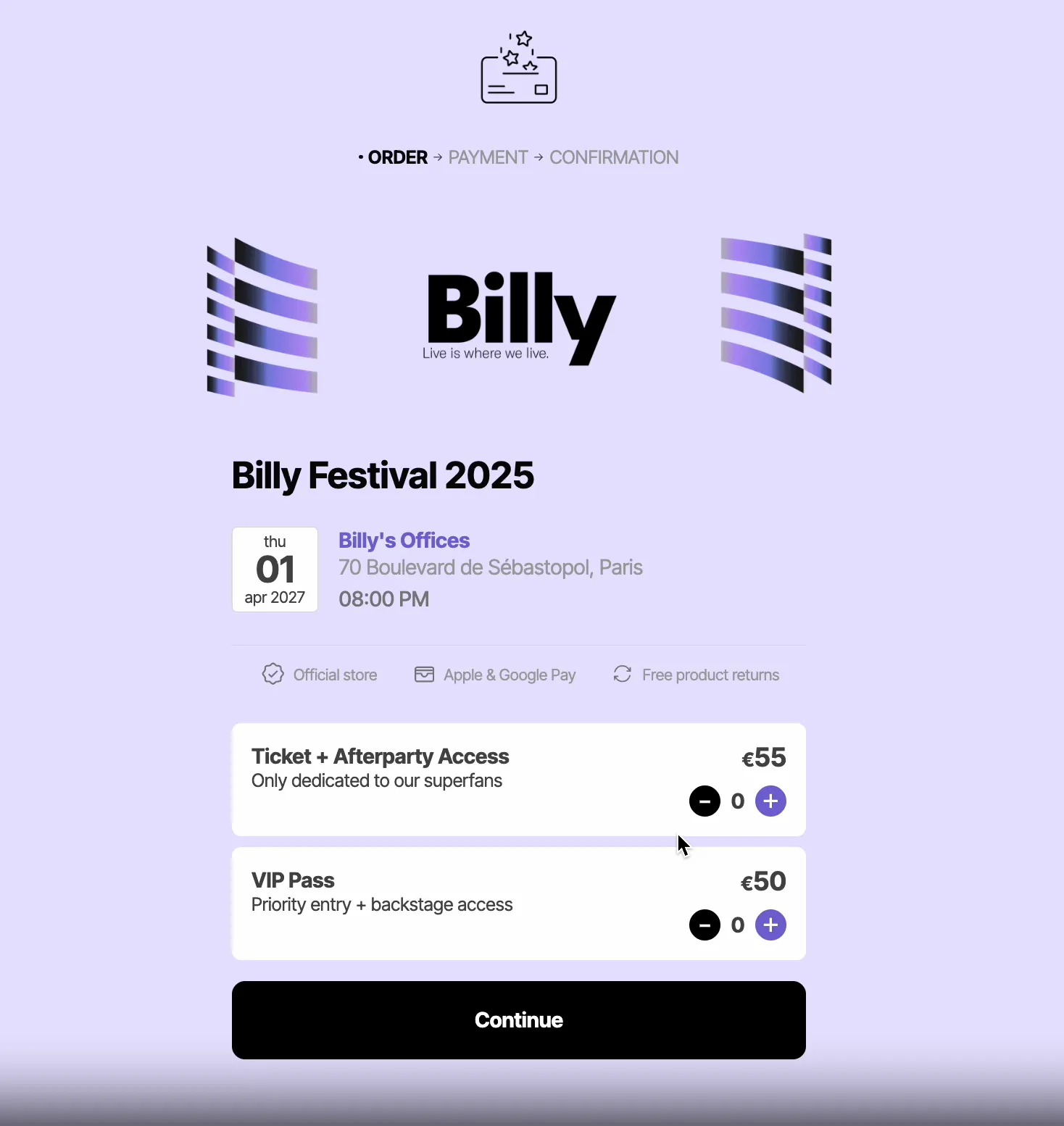
Option 1: Embedded Checkout
The Billy checkout appears directly inside your event page, so fans can browse and buy tickets in one place.

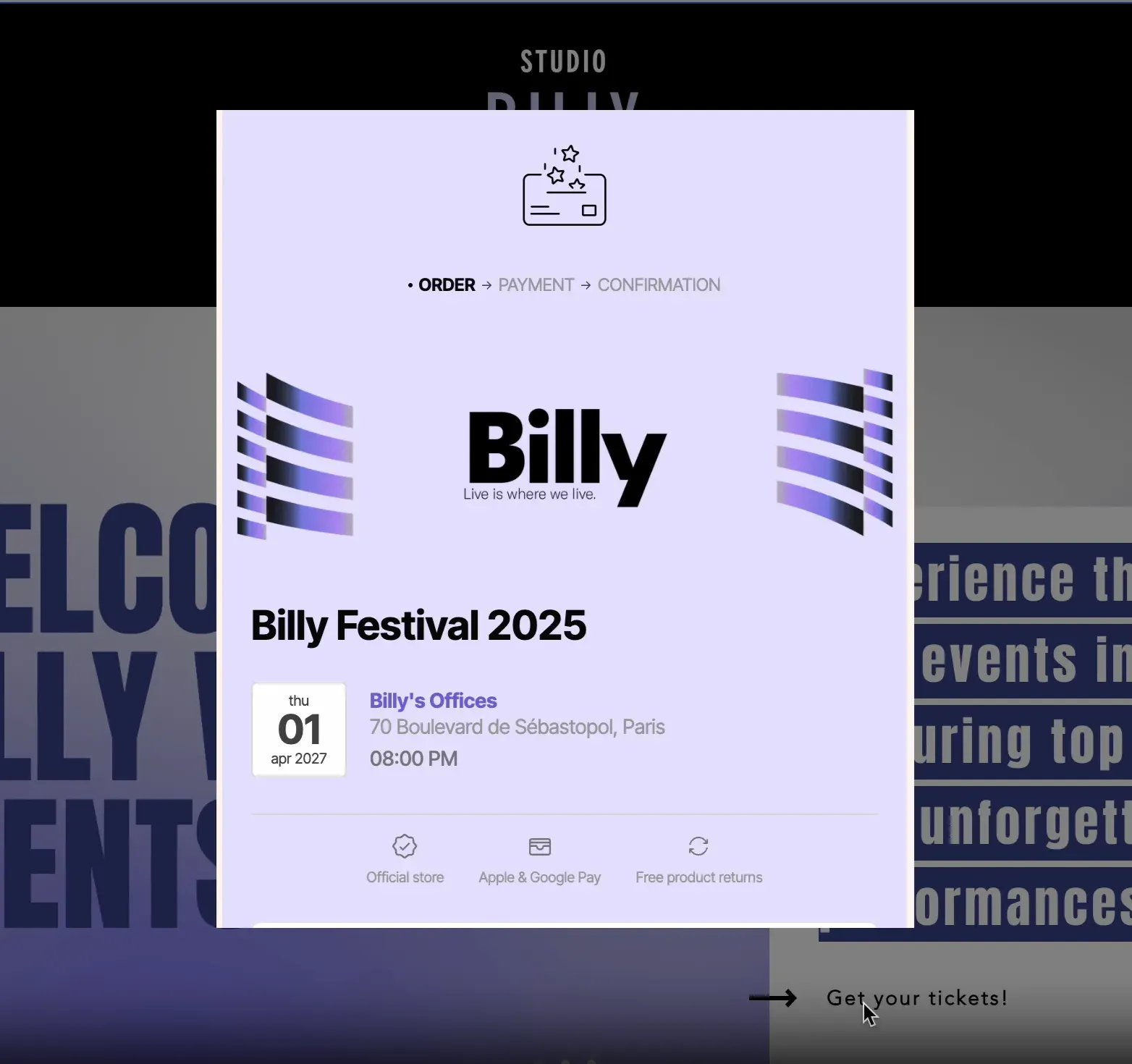
Option 2: Pop-up window
The Billy checkout opens in a clean pop-up window when visitors click your "Buy Now" button, perfect for keeping your page layout simple.

No matter which option you choose, fans can complete their purchase without leaving your website.
That means:
- A smoother checkout experience
- Higher conversion rates
- A stronger, more professional brand image
Ready to set it up? Let's go, it only takes a few minutes.
Before getting started…
Where to Find Your Sales Channel ID
Publish your Sales Channel first
Important: You will NOT see a Sales Channel ID until your Sales Channel is published. If it's still in draft, the link and ID won't exist yet.
Open your Sales Channels
- Go to Studio → Event → Sales Channels
- Select the channel you want to use
- Scroll down to the bottom and click the Share button
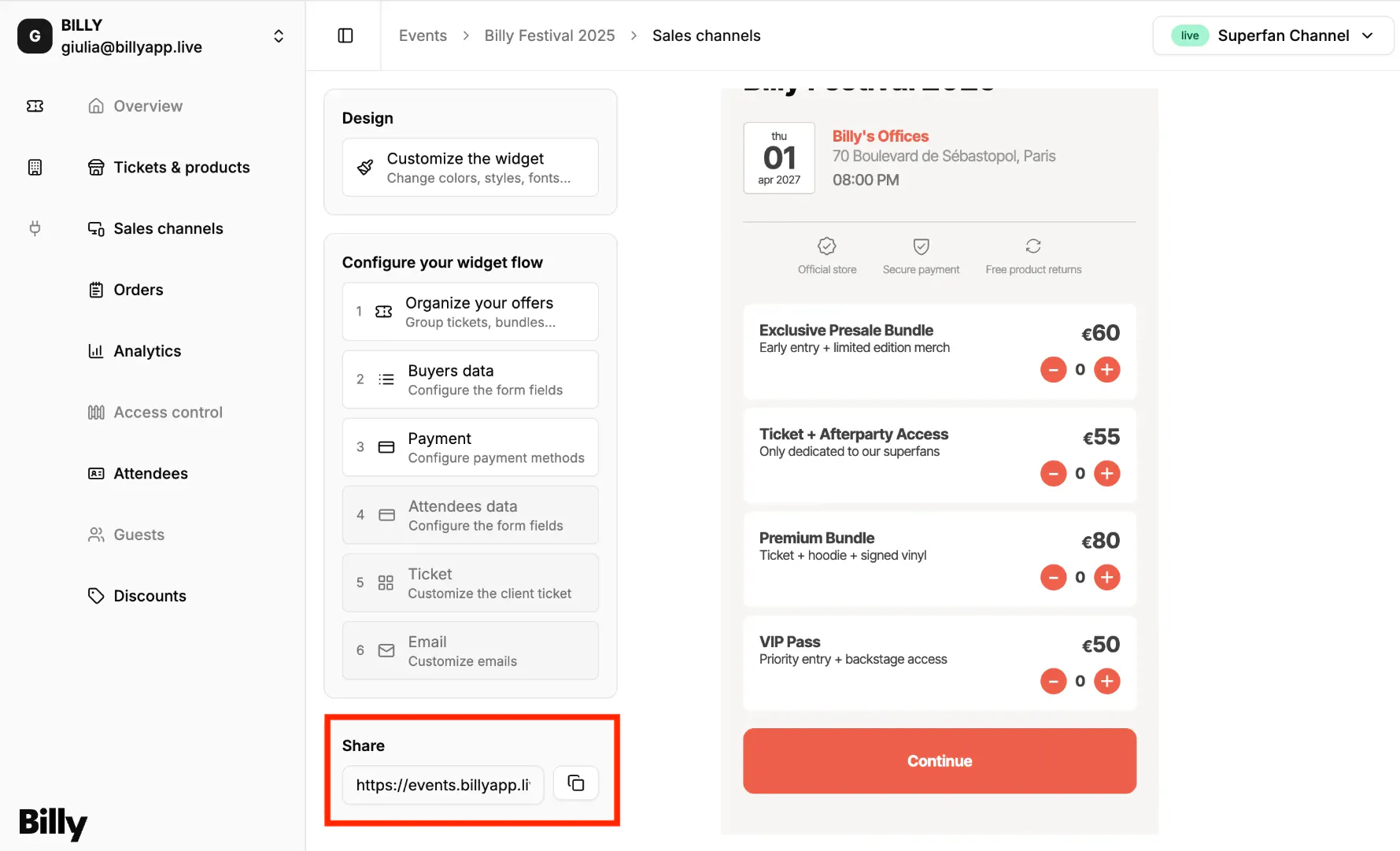

Extract your Sales Channel ID
- The Sales Channel ID is simply the long code at the end of the URL.
- Example URL:
https://events.billyapp.live/12b8b09a-eb23-4d65-ba92-f6059cb18648→ Here,12b8b09a-eb23-4d65-ba92-f6059cb18648is your Sales Channel ID.


If you have not published your sales channel yet, see Publish your Sales Channel.
Option 1: Embed your checkout flow on a page
You can easily add your Billy checkout widget to your Wix website, letting fans buy tickets directly from your site, no redirects, no confusion.
Follow the following steps
Open your Wix website.
Go to your Editor.
Add a Button where you want fans to access the checkout (e.g. "Get Tickets" or "Buy Now").
Customize the button text.
Under Link settings, choose Web Address and paste your Sales Channel URL.
Example: https://events.billyapp.live/12b8b09a-eb23-4d65-ba92-f6059cb18648
Save and Publish your site.
That's it! Your checkout is now embedded into your Wix website, giving fans a smooth, seamless purchase flow, without ever leaving your page.
If you have multiple ticket types or audiences (VIP, Partners, General), create a separate Sales Channel link for each, and use a dedicated button or page for each one.
Option 2: Using a pop-up to display your checkout flow
Want your ticket checkout to appear in a pop-up window instead of a full page?
With Wix Lightbox, you can create an elegant Billy checkout pop-up that fits perfectly with your site's design, ideal for fans buying tickets without leaving the page.
Step 1. Create a button
- Open your Wix Editor.
- Add a Button where you want the checkout to appear (e.g. "Buy Tickets" or "Get Your Pass").
- Link the button to open a Lightbox instead of a new page.
Step 2. Customize the Pop-Up
Now that your lightbox is added, you can edit it to display your Billy checkout:
- Go to Pages & Menu → Lightboxes.
- Select the new lightbox.
- Delete the default text or image blocks.
- Add an Embed Code element inside the pop-up.
- Paste your Billy checkout link (example:
https://events.billyapp.live/12b8b09a-eb23-4d65-ba92-f6059cb18648).
Step 3. Adjust Pop-Up Settings
- Click on your lightbox in the editor.
- Select Set Triggers → choose when it should appear: automatically on page load, or when the user clicks your "Buy Tickets" button.
- Choose how visitors close it (with an "X" icon or by clicking outside the pop-up).
Step 4. Preview and Publish
Once your setup is complete:
- Click Preview to test the fan experience.
- Check that the pop-up opens smoothly and the checkout loads correctly.
- Publish your site when ready.
You now have a Billy checkout pop-up fully integrated into your Wix site, giving fans a smooth, on-brand ticketing experience without leaving the page.
Wrapping Up
That's it, your Billy checkout is now live on Wix!
Whether you chose the embedded checkout or the pop-up lightbox, your fans can now explore your event and complete their purchase without ever leaving your website.
This integration not only improves the buying experience but also helps you:
- Boost your conversion rate by keeping fans on your page.
- Strengthen your brand identity with a seamless, on-site checkout.
- Track all your sales and performance directly in Billy Studio.
Tip: Regularly test your checkout experience, try both desktop and mobile views to ensure everything runs smoothly for your fans.