
Update attendee information
Sometimes attendees need to correct their details after purchasing a ticket. Maybe they made a typo in their name, changed their email address, or need to update other information like their company or phone number.
Sometimes attendees need to correct their details after purchasing a ticket. Maybe they made a typo in their name, changed their email address, or need to update other information like their company or phone number.
With Billy, you can update attendee information directly from Studio without requiring attendees to resubmit forms or contact support. This gives you full control to make corrections quickly and maintain accurate data for your event.
⚙️ How to Update Attendee Information
- Go to Attendees in Billy Studio
- Find the attendee whose information needs updating (use the search bar to filter by email, QR code, or order number)
- Click the edit icon (pencil) in the Form Data column
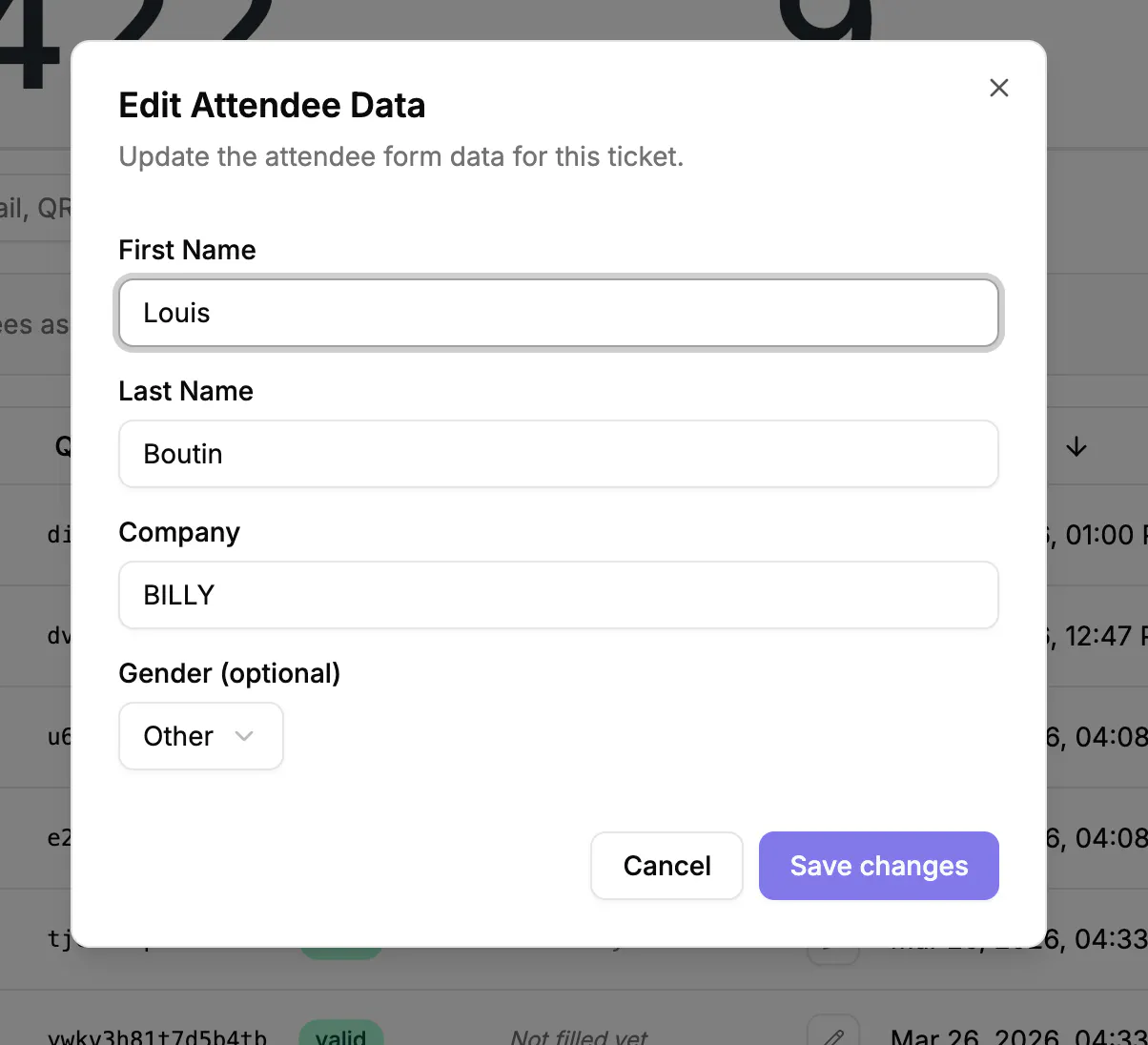
- Update the required fields in the Edit Attendee Data modal
- Click Save changes
The ticket PDF will automatically regenerate with the updated information, ensuring everything stays synchronized



What You Can Update
When you click to edit an attendee's information, you'll see all the form fields that were collected during checkout for that specific ticket category.
This includes:
- First Name and Last Name (required fields)
- Email Address (if collected)
- Phone Number (if collected)
- Company (if collected)
- Gender (if collected)
- Age (if collected)
- Country (if collected)
- Any custom fields you configured for that ticket category
👀 The fields you see in the edit modal depend on what attendee data you configured for each ticket category. If you didn't collect a specific field (like phone number or company), it won't appear in the edit form.
Common Use Cases
Correcting Typos
A VIP attendee realizes their name is misspelled on their ticket. Update their first and last name directly from the attendee table, and the PDF regenerates automatically with the correct information.
Updating Contact Information
An attendee changes their email or phone number and needs their ticket sent to the new address. Update their email in Studio and resend the confirmation if needed.
Transferring Tickets
Someone can't attend and transfers their ticket to a colleague. Update the attendee name, email, and any other relevant fields to reflect the new ticket holder.
Bulk Updates
After an event sells out, you notice several attendees didn't complete optional fields like company or phone number. Use the attendee dashboard to fill in missing information as it comes in through other channels.
Best Practices
- Update information as soon as you're notified to avoid confusion on event day
- Verify changes with the ticket holder before saving, especially for name corrections that affect check-in
- Use the search function to quickly locate attendees in large events instead of scrolling through the full list
- Export attendee data regularly to maintain backup records and track changes over time
- Check the regenerated ticket PDF after making updates to ensure all information displays correctly
⚠️ Important Notes
- Automatic PDF Regeneration: When you update attendee information, the ticket PDF is automatically regenerated with the new details. The attendee doesn't need to do anything.
- First Name and Last Name are required: These fields cannot be left empty as they're essential for ticket identification and check-in.
- Status Indicators: The Status column shows whether tickets are valid, voided, or in another state. You can only edit information for valid tickets.
- Form Data Preview: The Form Data column shows a preview of attendee responses. Click the edit icon to see and modify all fields.
🎉 Wrapping Up
Being able to update attendee information gives you the flexibility to handle real-world situations without technical workarounds or support escalations.
Whether it's correcting a simple typo or transferring a ticket to someone new, you now have complete control over your attendee data, all from one centralized dashboard in Billy Studio.
👉 Keep your attendee list accurate, up to date, and ready for a smooth event experience.