
Setting up ticket categories
Configure and manage every ticket category of your event, from Early Bird to VIP passes.
Whether you're offering Early Bird, VIP, or multi-day passes, Billy makes it simple to configure and manage them all in one place.
You can go to Event overview > Tickets & Product to add and see ticket categories.
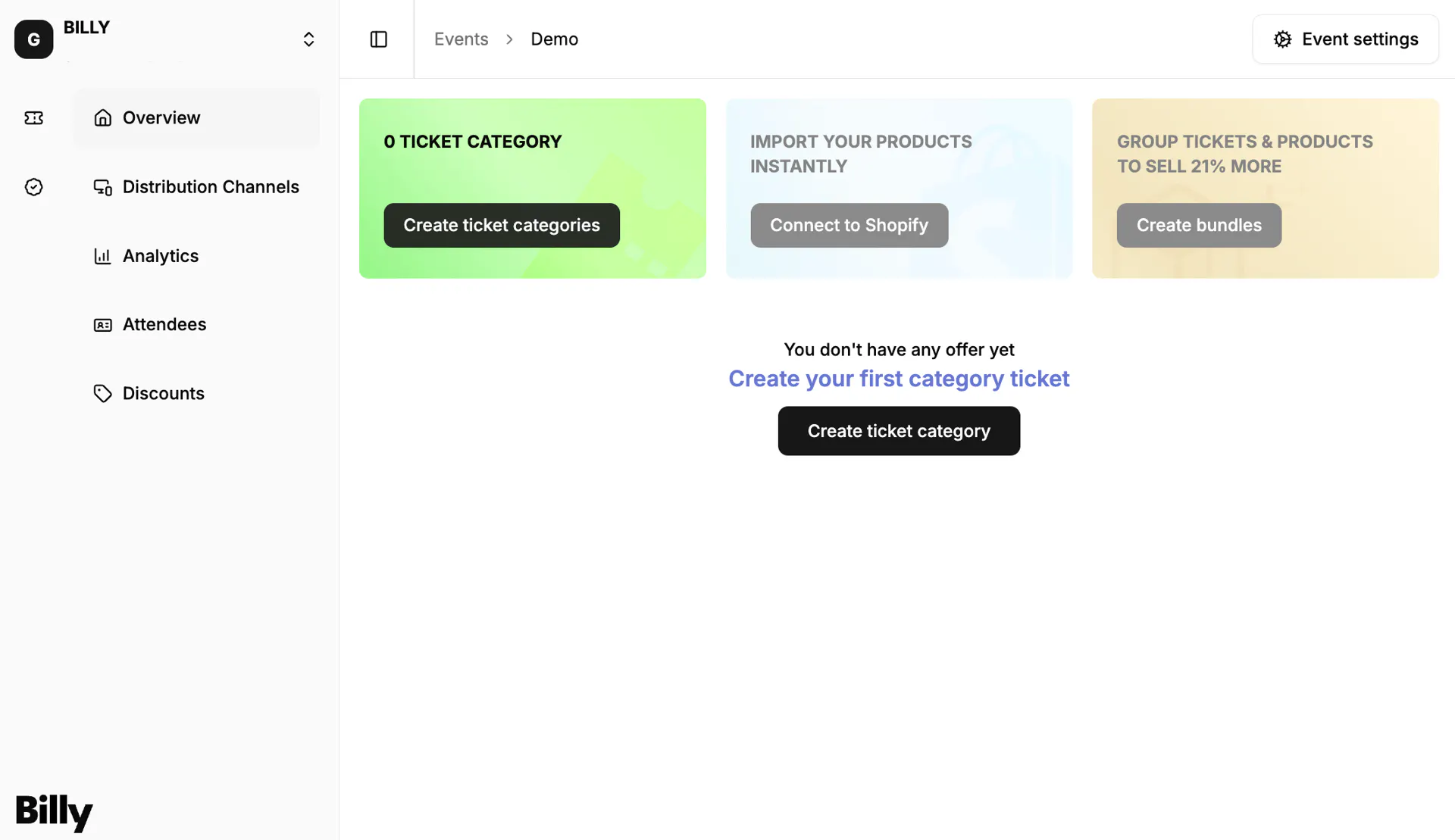

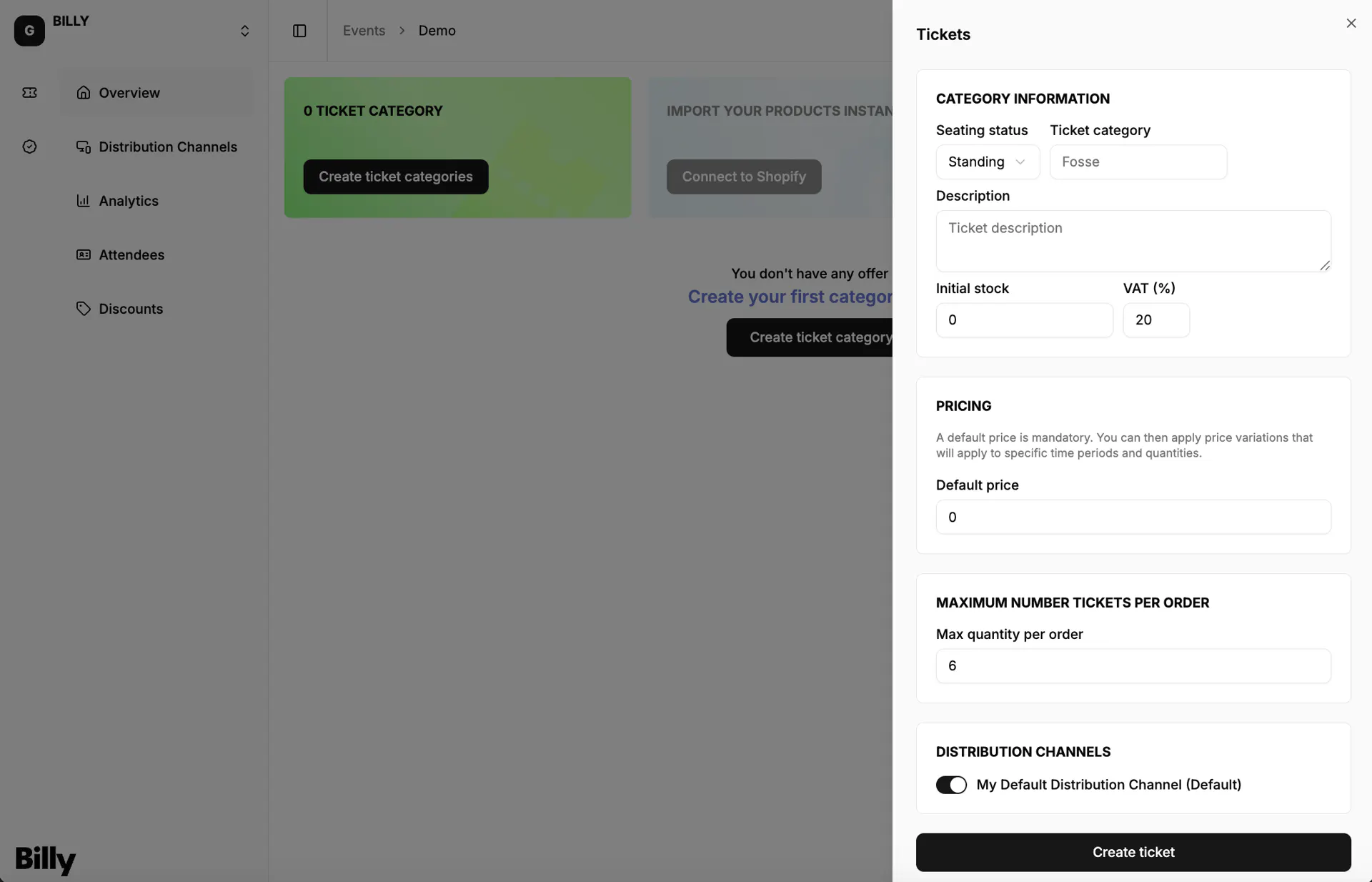
When setting up or editing a ticket category, you'll have a few options:
- Ticket Category: choose a clear name for your ticket offer (e.g. General Admission, Early Bird, VIP Pass).
- Description: add, if necessary, a short summary of what's included, for example "Multi days pass including XYZ", "Access to all sessions", or "Standing area only".
- Initial stock: set the total number of tickets available for this category. The ticket category will be marked as sold out when the stock reaches 0.
- Default price (incl. VAT): the public price paid by customers, including VAT (Value Added Tax).
- VAT: VAT for this ticket category (depends on your legislation).
- Max quantity per order: the number of tickets that can be purchased within a single order.
- Distribution channels: list channels where you want to sell your tickets. By default, a sales channel is already created when an event is created.

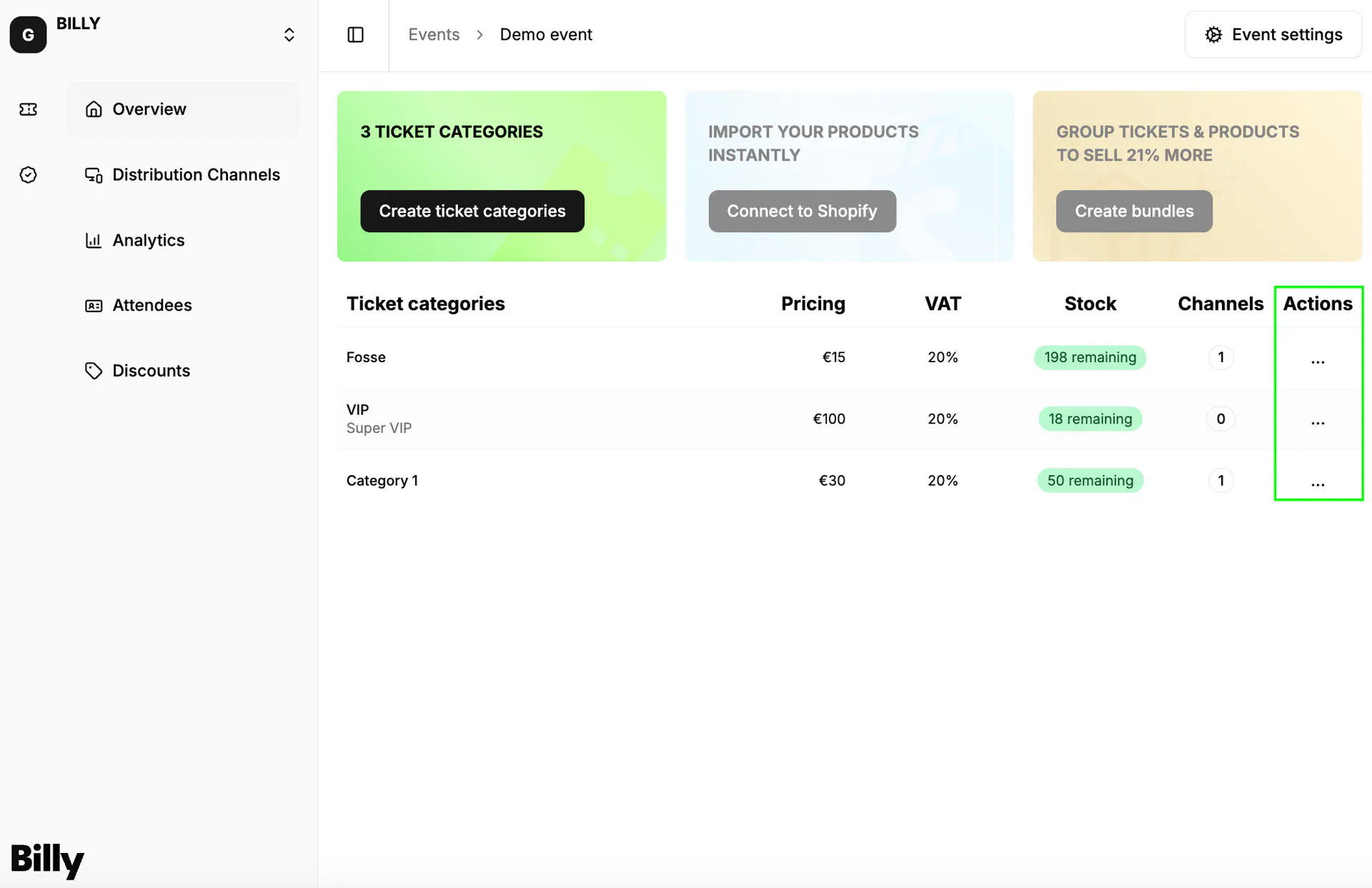
Remember that you can always modify your ticket categories configuration by clicking on the Actions button.

Changing ticket settings after registration
When you modify ticket category settings after purchase from customers or guests registration, their existing registrations remain unchanged. This applies to:
- Pricing: changing a ticket from free to paid (or vice versa) or adjusting the price doesn't affect already issued tickets.
- Other settings: similar principles apply to other ticket modifications — issued tickets maintain their original information.