
Search, manage & analyze orders
Managing orders efficiently helps support your customers quickly and save time.
Managing orders efficiently helps support your customers quickly and save time.
In Billy Studio, you can:
- Search, filter, and analyze all your orders in real time.
- Access buyer and payment details for every transaction.
- Download tickets or issue refunds, all from the same page.

🔎 Search Orders
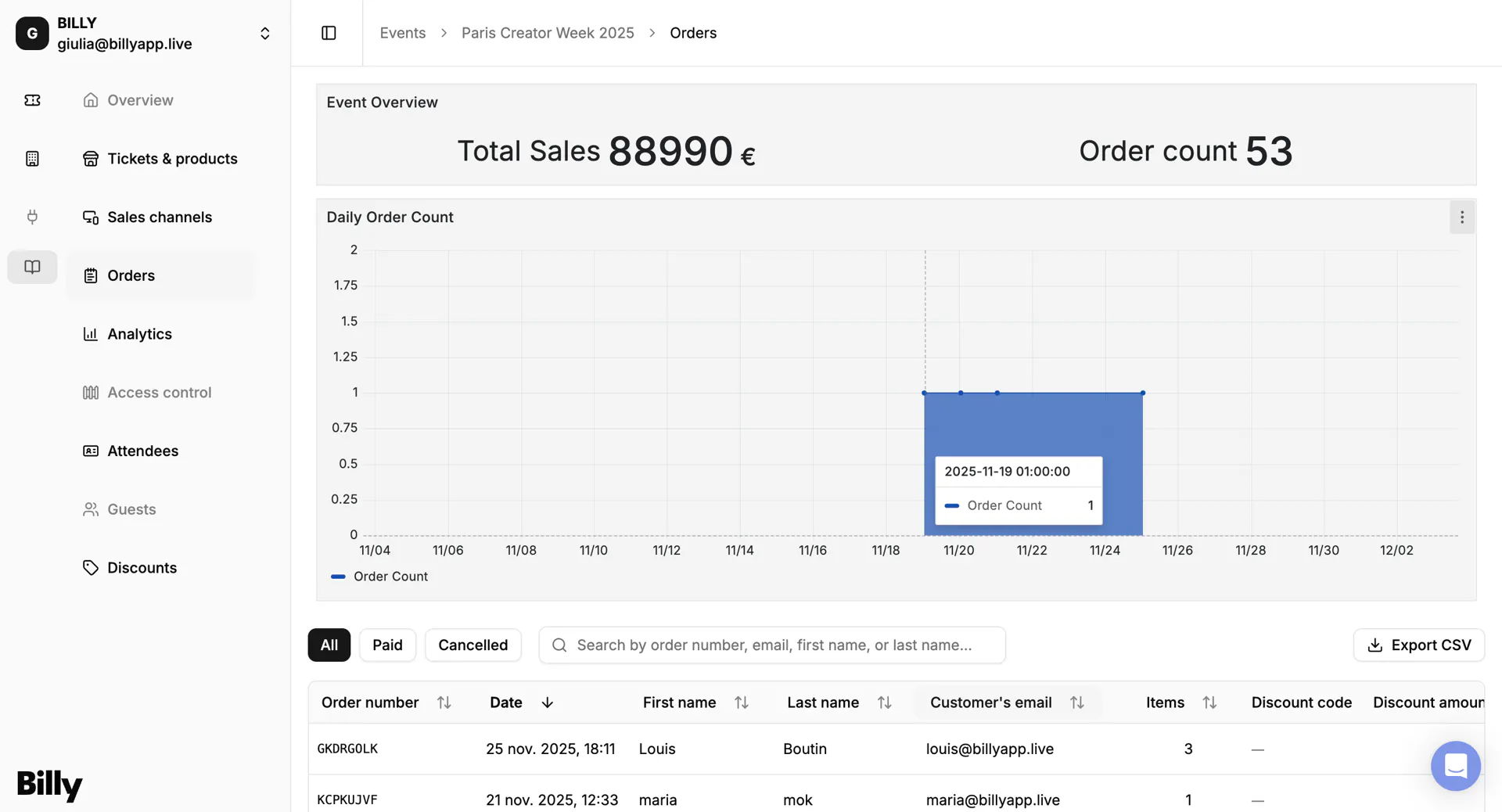
You don't need to scroll endlessly, the search bar allows you to instantly find the order you are looking for searching by order number, buyer's email, name…
This is ideal for customer support or quick lookups.


Filter Orders
In addition to the search bar, you can filter orders using the status buttons at the top: all, paid and cancelled.
👀 Analyze your event sales
The orders page is divided into three main sections:
A. Event Overview
B. Daily Order Count
C. Order Details
A. Event Overview
At the top of the dashboard, you'll find a summary of your event's performance, which gives you a quick snapshot of how your event is performing financially.


B. Daily Order Count
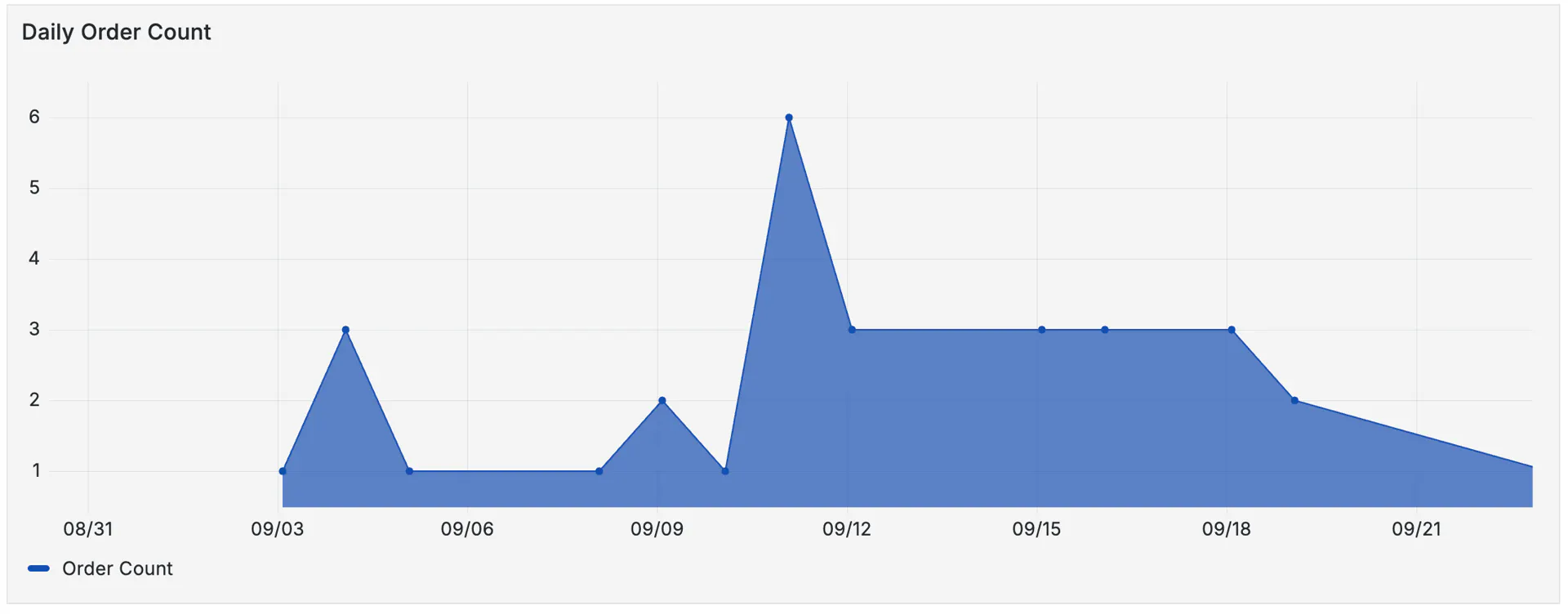
The graph shows the number of orders per day, helping you:
- Spot sales peaks (e.g. after a lineup drop or newsletter).
- Identify quieter periods.
- Understand how fans buy over time.
💡 Tip: Compare early bird sales vs. general admission phases to optimize timing for future campaigns.

You can zoom In and Out
- The graph works like a timeline view.
- You can zoom in to check details and see small spikes more clearly.
- To return to the full view, just double-click anywhere on the chart.
C. Orders Details
The Orders Table gives you a complete list of every transaction for your event.
Each row represents a single order, with all the key details you need at a glance.


📋 Columns Explained
| Column | Description |
|---|---|
| Order Number | Unique ID for each order |
| Date | Date and time of purchase |
| First / Last Name | Buyer's name |
| Buyer's email address | |
| Items | Number of tickets or products purchased |
| Discount Code | Code used (if applicable) |
| Discount Amount | Value of the discount applied |
| Order Amount | Total paid (VAT included) |
| Status | Paid, Pending, Refunded, Cancelled |
| Payment Method | Type of card used and last 4 digits |
| Payment Provider | e.g. Stripe, PayPal |
| Actions* | Cancel order, Download tickets, View order details (delivery method, payment details, customer info)Issue a refund (see below for details) |
👀 Manage your Orders
The Actions button (>) opens the full Order Details view.
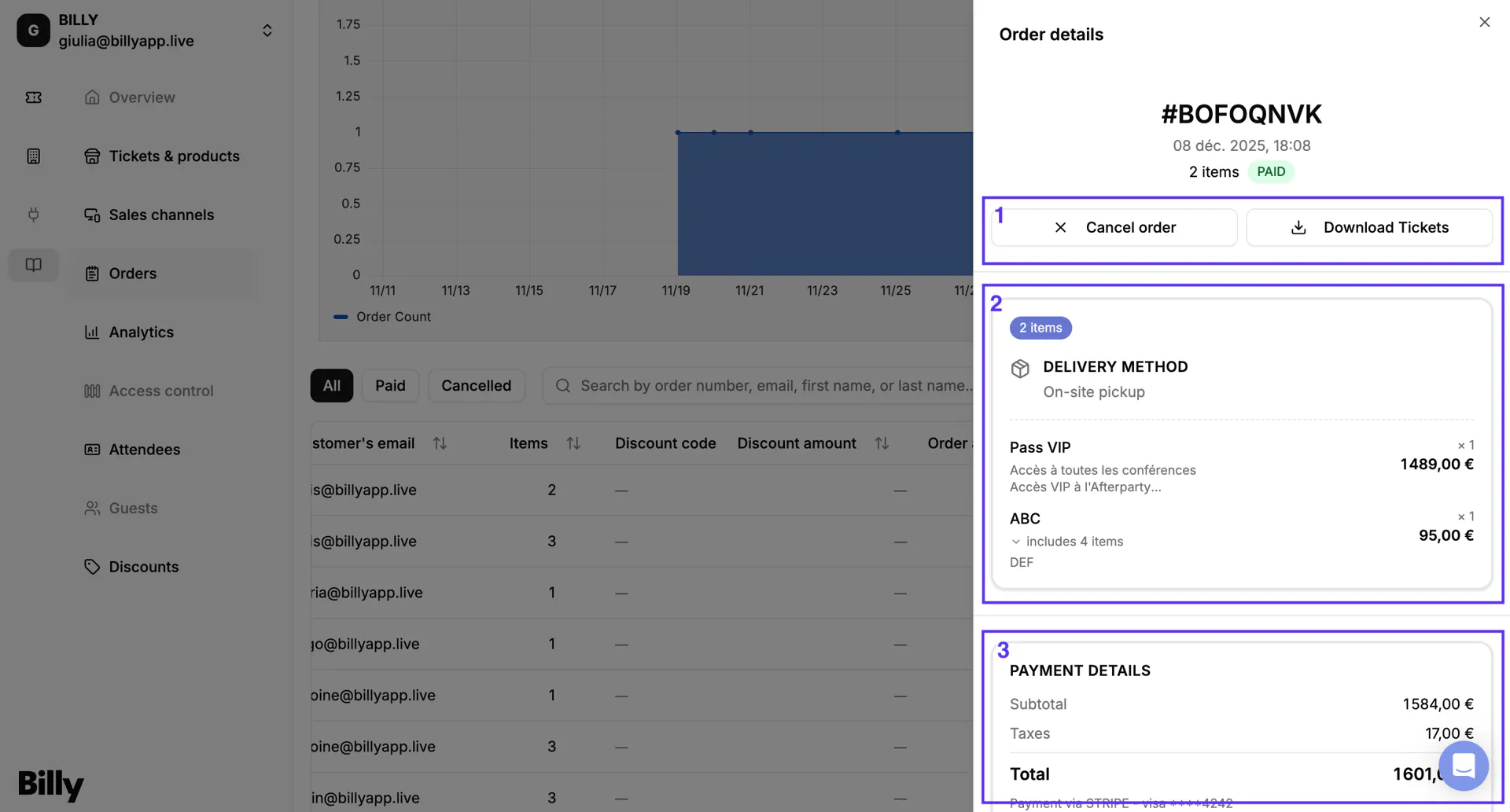

1. Cancel or Download Orders
2. Delivery method
Here you can see:
- The delivery type (e.g. On-site pickup, Email delivery, or Mobile tickets).
- The list of items purchased by the customer, including ticket types, bundles, or products.
- The quantity of each item and the price per unit.
3. Payment Details
This section summarizes the financial details of the order, including:
- Subtotal → Total amount before taxes.
- Taxes → Tax value automatically calculated.
- Total → Final amount paid by the customer.
- Payment method → Payment provider (e.g. Stripe) and card information (type + last 4 digits).
4. Customer information
This block displays the buyer's contact information, such as:
- Full name
- Email address
💡Why it matters: This data helps you quickly identify the buyer and contact them in case of issues (e.g. failed payment, refund request, or event updates).
5. Customer Additional Form Response
If you configured extra questions in your Buyer or Attendee forms, the responses will appear here. This may include: age, phone number, company role: any other custom field you added in your widget flow.
🎉 Final Takeaway
With the Orders Details table, you can:
- Review every sale from your event
- Quickly find the order you need with filters and search
- Analyze buyer behavior to make smarter decisions