
Scan tickets
Install CodeReadr, connect it with a scanner account, scan attendees at the door and know what to do when a ticket is flagged.
Use the Scanner app to validate attendees’ tickets at the door and check them in. Each staff member logs in with a scanner account created on your Access control page, then scans QR codes against your live guest list so entry is confirmed on the spot. This is useful at every entrance of your event and lets your whole team scan at once, each on their own device.
How it works
The Scanner app connects to your event using the username and password from a scanner account you created in Access control. Every scan is validated against your ticket data.
In Entry only mode each ticket is checked in a single time: a ticket already scanned is flagged so it cannot be reused.
In Entry & exit mode tickets are scanned on the way in and out, up to the Re-entry limit you set. In Entry & exit, validity is checked live against Billy's database, so results are real time. In Entry only, scans are pulled back to your studio about every two minutes, so your Scan stats update in near real time rather than instantly.
Connecting the Scanner app CodeReadr
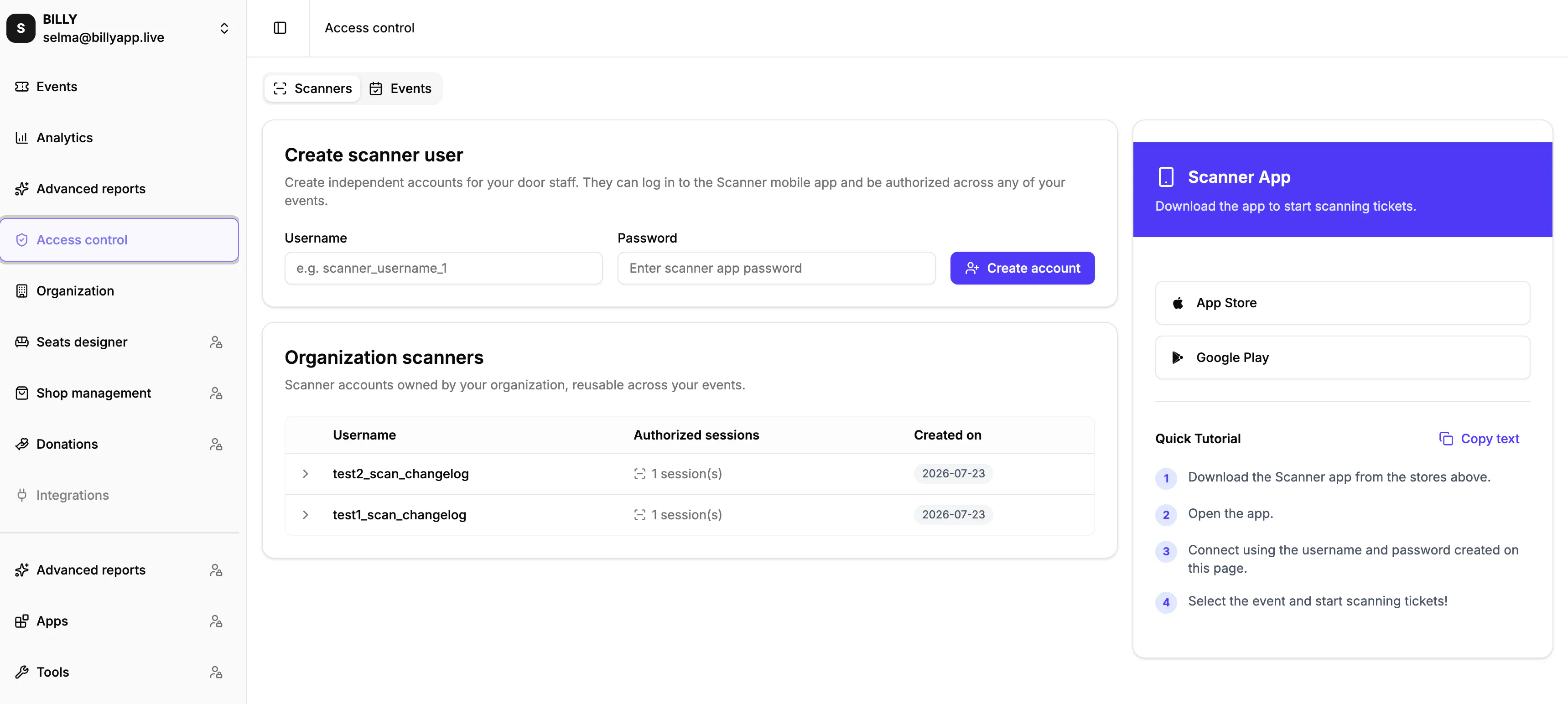
Install the Scanner app CodeReadr from the App Store or Google Play, then open it and connect using the Username and Password created on the Access control page. Once connected, you select the event you are scanning, and the app loads that event’s tickets.

Scanning a ticket
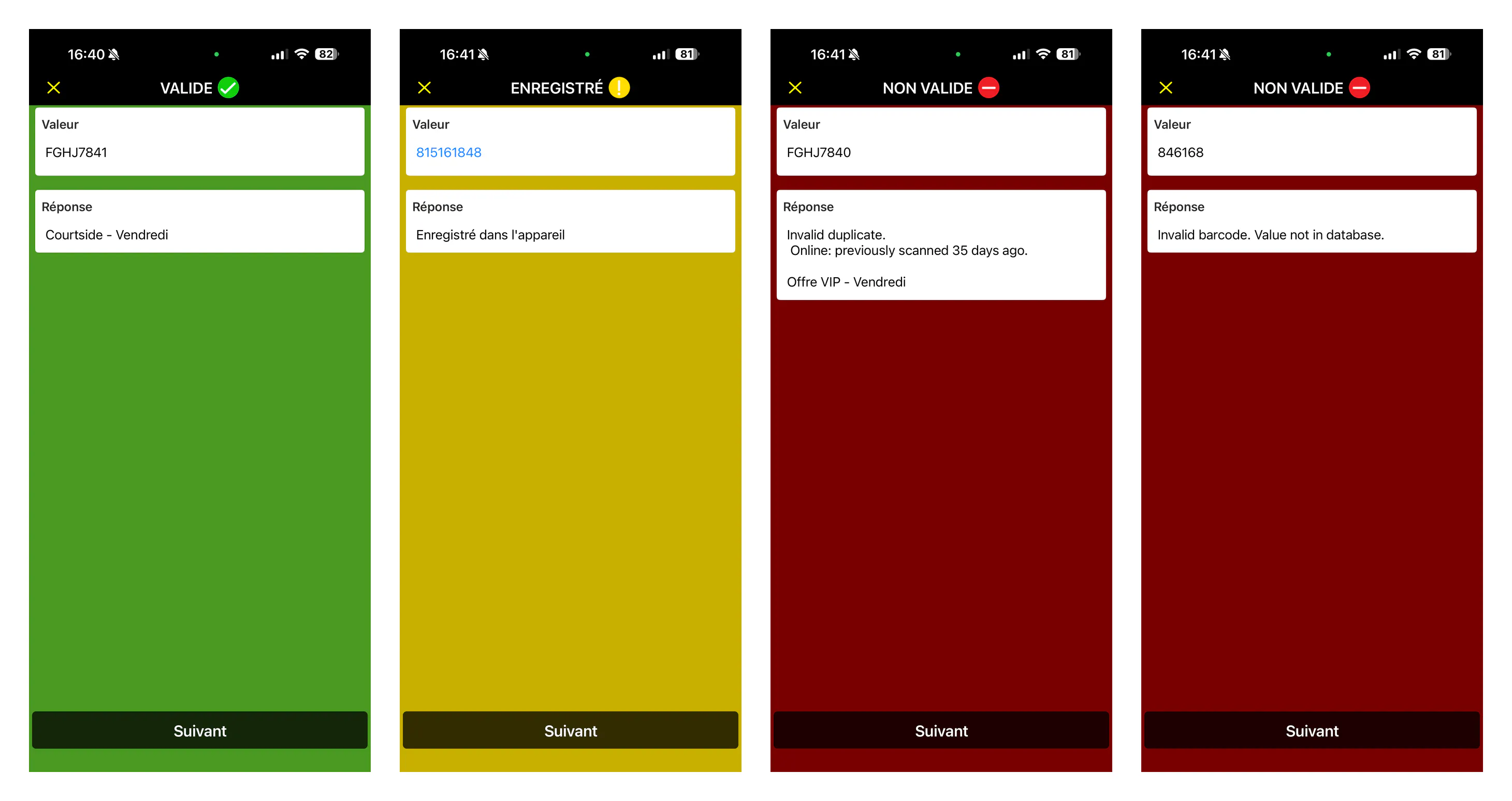
Point the camera at the attendee’s ticket QR code. The app reads it automatically and shows the result: a valid ticket is confirmed on screen so you let the attendee in, and an already-scanned or invalid ticket is flagged so you can stop and check. You keep scanning attendee after attendee without leaving the screen.

Checking a flagged ticket
When the app flags a ticket, read the message on screen before you decide. Three situations cover nearly every refusal at the door, and each one calls for a different answer, because a ticket that does not exist and a ticket already used are not the same problem.
| What the app shows | What it usually means | What to do |
|---|---|---|
| 🔴 Invalid barcode. Value not in database. | The QR code is not in the event's database. Either the ticket has not been synced to the scanning platform, which is what usually happens on an Entry only session, or the ticket is falsified or copied, belongs to another event or another date, or has been cancelled or refunded. | Start with the sync: re-sync the tickets manually from the Billy Studio, then search the code on the scanning platform and scan it manually if you can. Look the failed QR code up on the Attendees page to see whether it exists for this event at all. If it does not, note the QR code, pass it to Billy support, and do not let the person in on that ticket. |
| 🔴 Ticket Already Scanned | An attempt to re-enter, a ticket shared between several people, a group whose ticket was scanned at another gate, or an accidental previous or double scan. | Open the ticket history and look at when the first scan happened. That single detail tells you which case you are in. Under a minute. Either an agent scanned twice, which is unlikely since every scan has to be confirmed on screen, or two people in the same group presented the same ticket. The history names the user who scanned, and one user matches one device, so you can tell which gate it came from and ask that agent. Then find the second person and scan their own ticket. Over a minute. The ticket has already been used, as a re-entry or because it was passed on to someone else. Tell the person it was scanned some time ago and cannot be used again. If they say they know someone already inside, the two of them most likely presented the same ticket, so ask for the second one. |
| Nothing is read at all | The QR code is unreadable: screen too bright or too dark, cracked screen or reflection, blurred, pixelated or undersized code, poor print quality, folded or crumpled ticket. | Note why it could not be read, find the ticket again from the Studio, then scan it off your own screen with a scanning device (PDA). |
Keep a stable internet connection while scanning so every check-in is saved to your studio.