
Refund an order
If a customer requests a refund or you need to cancel an order for operational reasons, you can do it directly from Billy Studio. The process is simple and transparent, allowing you to choose exactly what should be refunded.
If a customer requests a refund or you need to cancel an order for operational reasons, you can do it directly from Billy Studio. The process is simple and transparent, allowing you to choose exactly what should be refunded.
🔄 How to Refund / Cancel an Order
- Go to Orders in Billy Studio.
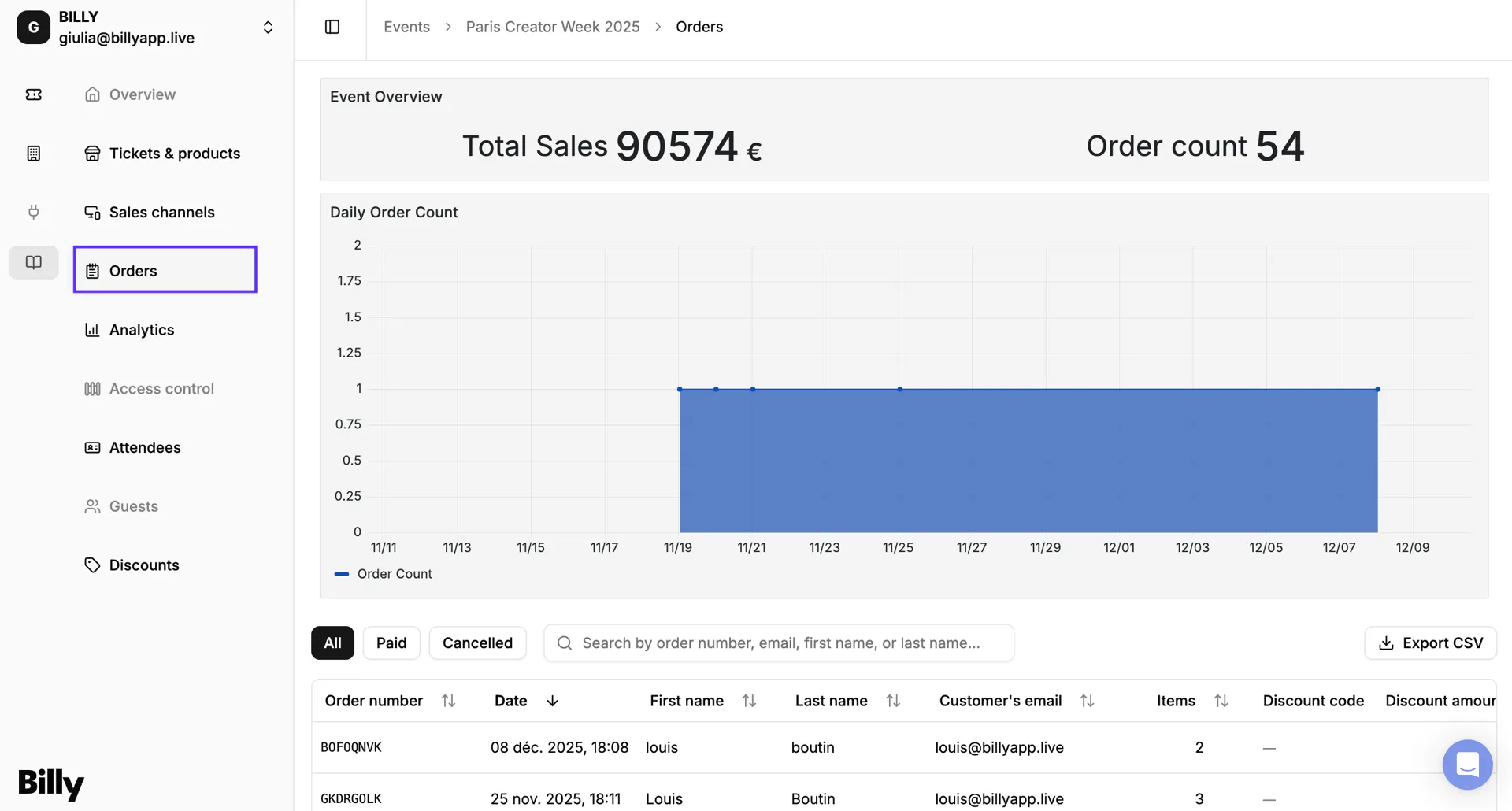

- Select the order you want to refund.
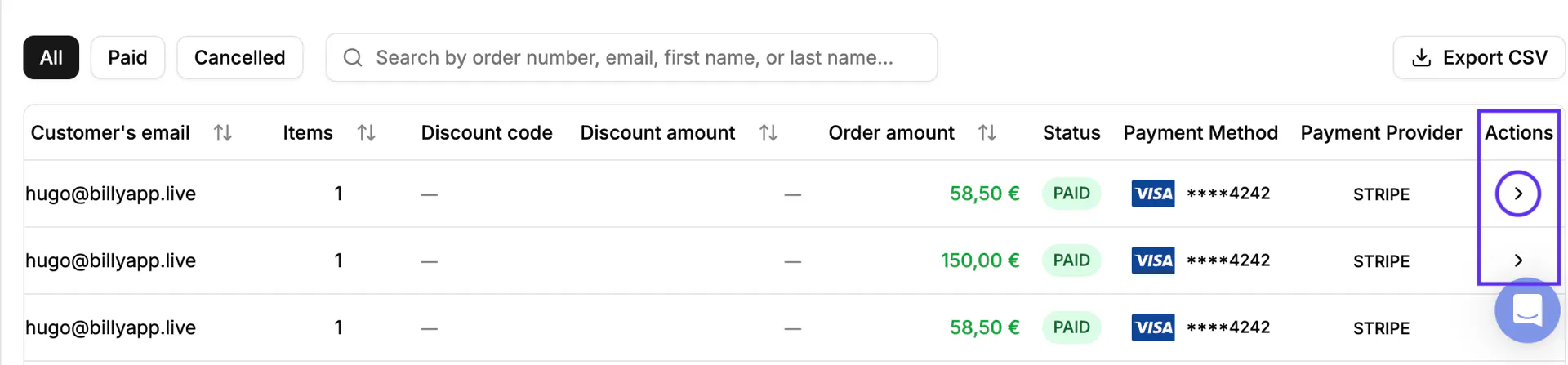
- Under Actions, click on the ">" icon to open the order details.

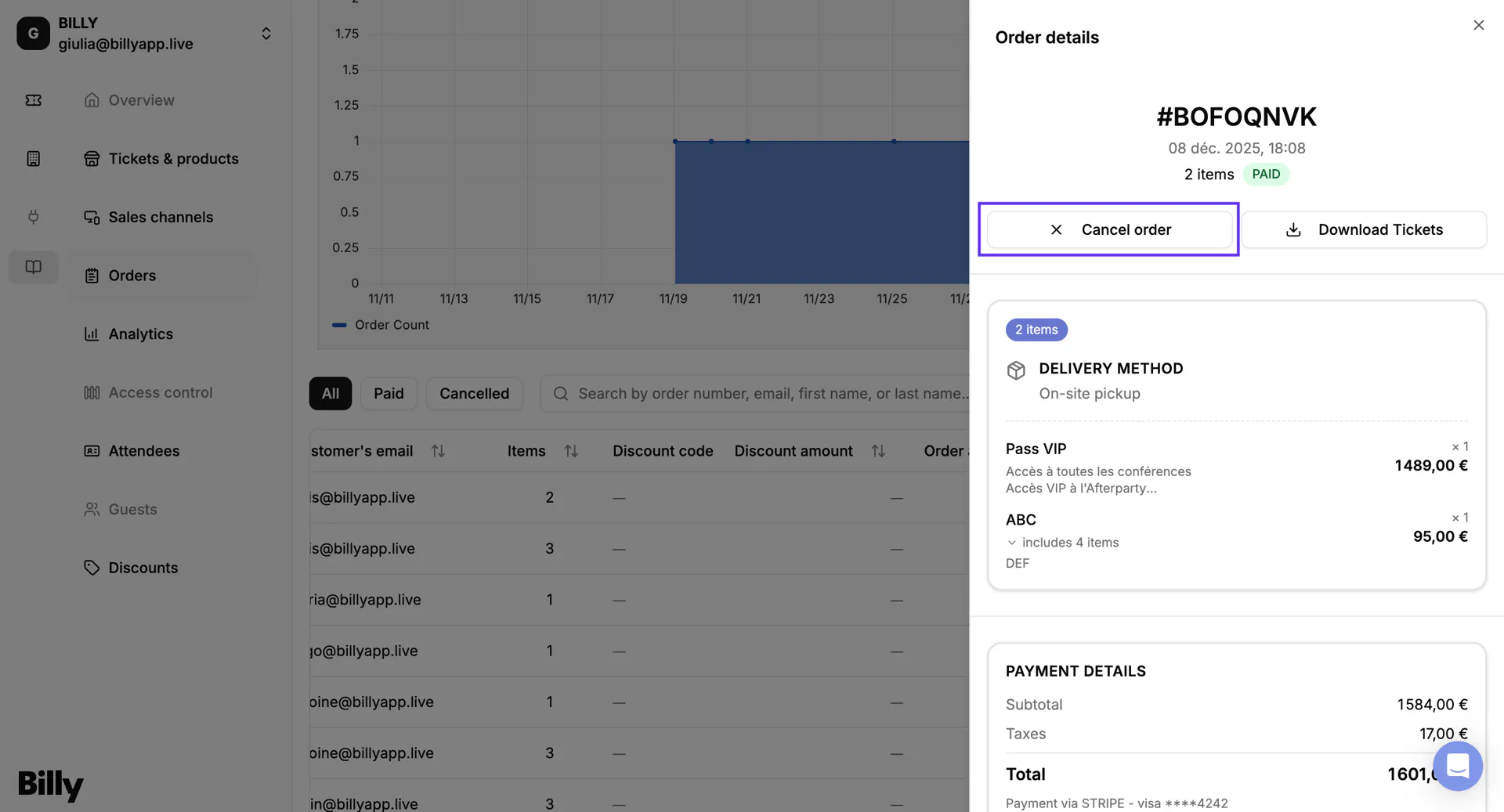
- Click Cancel order at the top of the Order Details page.

You will see a cancellation window with several options:
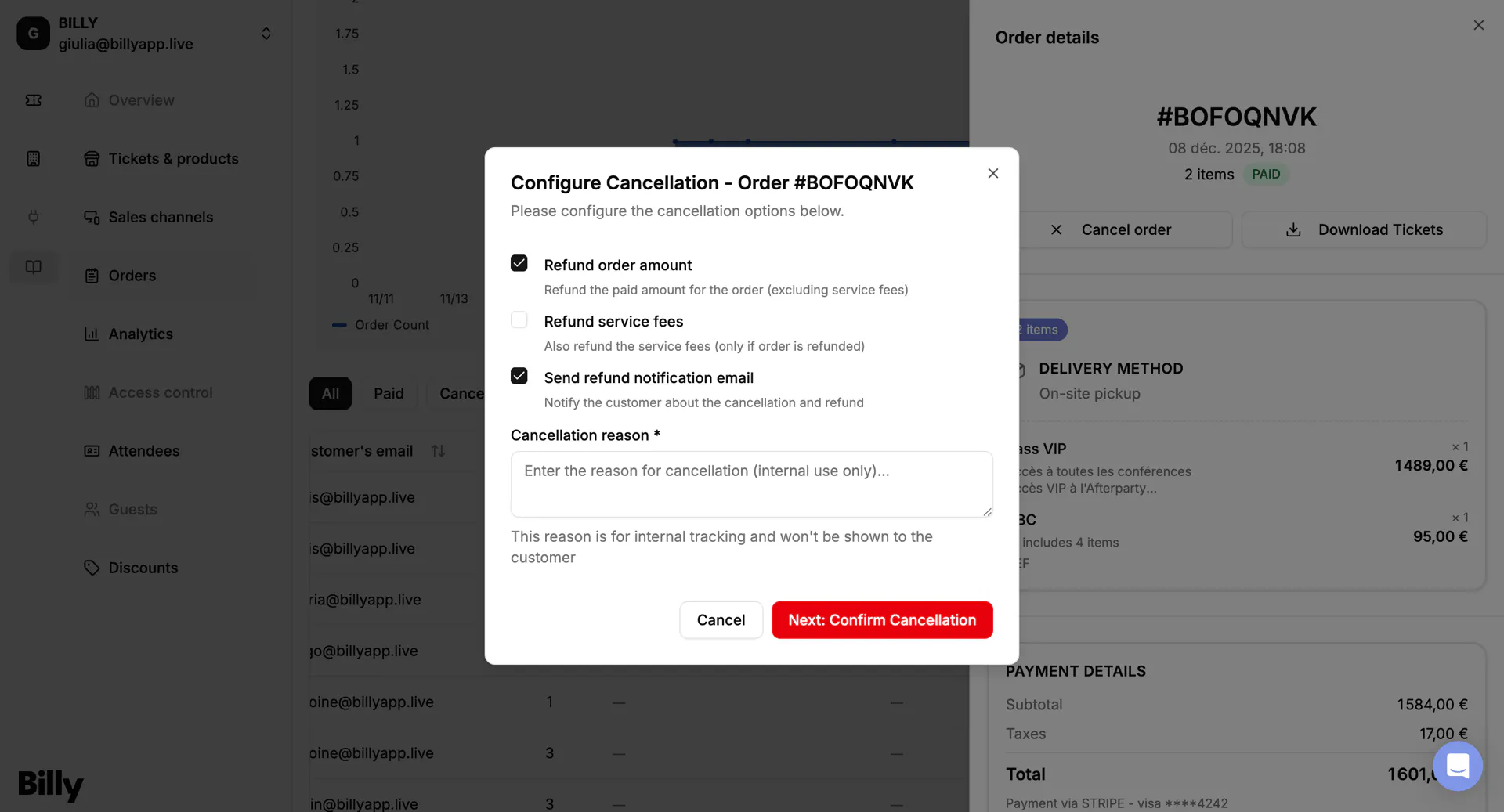

a. Refund order amount
Refund the full amount paid for the order (excluding service fees, unless you choose to refund them too).
- This returns the ticket price(s) to the buyer.
b. Refund service fees (optional)
If enabled, Billy will also refund the applicable service fees.
- This is useful if you want to absorb the platform fees for special cases.
c. Send refund notification email
Automatically notify the buyer that their order has been cancelled and refunded.
- Saves time and keeps communication clear.
d. Cancellation reason (internal)
You'll be asked to enter a reason for cancelling the order.
- This reason is only visible to your internal team
- It helps keep track of why cancellations occur (e.g., duplicate order, customer request, payment issue, event change)
→ After configuring your options, click Next: Confirm Cancellation to finalize the process.
✔️ What Happens After Cancellation
Once the cancellation is confirmed:
- The order status changes to Cancelled
- Tickets for this order will be voided (and can't be used anymore)
- Your customer will be refunded directly on their bank account in 5 to 7 days (bank delay)
🧠 Tips for Managing Refunds
- Double-check the order details before cancelling, refunds cannot be reversed.
- Always enter a clear internal reason for tracking and support follow-up.
- Enable the notification email to reduce manual communication with customers.
💰 Partial Refunds
Sometimes you do not need to cancel an entire order, you just need to refund specific tickets or a custom amount. For example, when a customer bought four tickets but only two attendees can make it, or when you need to refund part of an order due to a partial service issue.
Billy now supports partial refunds directly from Studio, giving you complete flexibility to refund exactly what makes sense for each situation.
How to Process a Partial Refund
- Go to Orders in Billy Studio
- Select the order you want to partially refund
- Under Actions, click on the ">" icon to open the order details
- Click Refund order at the top of the Order Details page
- In the refund window, you'll see all tickets in the order with individual refund controls
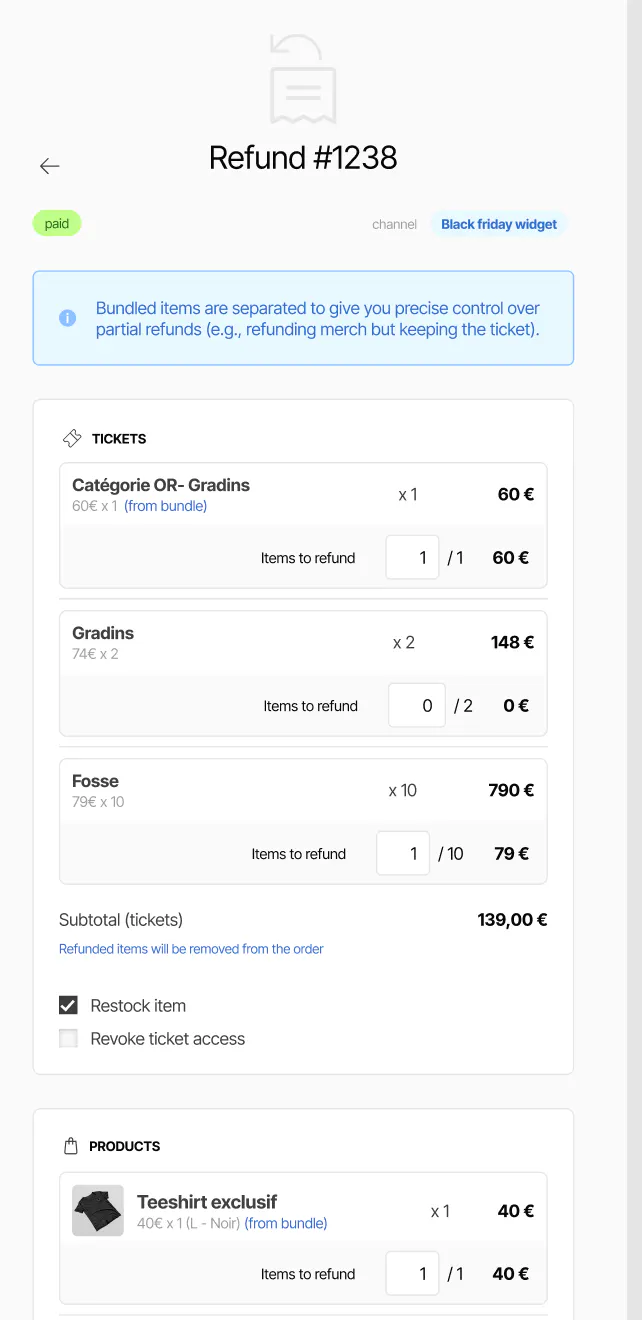

Choose what to refund:
- Select specific tickets to refund by checking the boxes next to each ticket line
- Enter a custom refund amount if you need to refund a specific sum instead of full tickets
- Choose whether to refund service fees for the selected tickets
Configure refund options:
- Send refund notification email: Automatically notify the buyer about the partial refund
- Refund reason (internal): Enter why you're processing this partial refund for internal tracking
→ After configuring your options, click Next: Confirm Refund to finalize the process.
✔️ What Happens After a Partial Refund
Once the partial refund is confirmed:
- The refunded amount is processed back to the customer's original payment method
- Only the refunded tickets are voided—remaining tickets in the order stay valid
- The order status updates to show the partial refund
- Your inventory is automatically restocked for the voided tickets
- Your customer receives the refund in 5 to 7 business days (bank processing time)
🎉 Final Takeaway
Billy gives you a clear and controlled way to refund any order. You can choose exactly what to refund, notify your customer with one click, and keep clean internal records, all directly from the Order Details page.