
Managing Offers in Your Sales Channel
Use Manage Offers to control exactly which tickets, bundles and products appear in your widget checkout. This is useful when you want to:
Use Manage Offers to control exactly which tickets, bundles and products appear in your widget checkout. This is useful when you want to:
- Hide offers temporarily (early bird sold out, VIP not yet announced)
- Show only a subset of tickets on specific sales channels
- Prepare categories or bundles before making them public


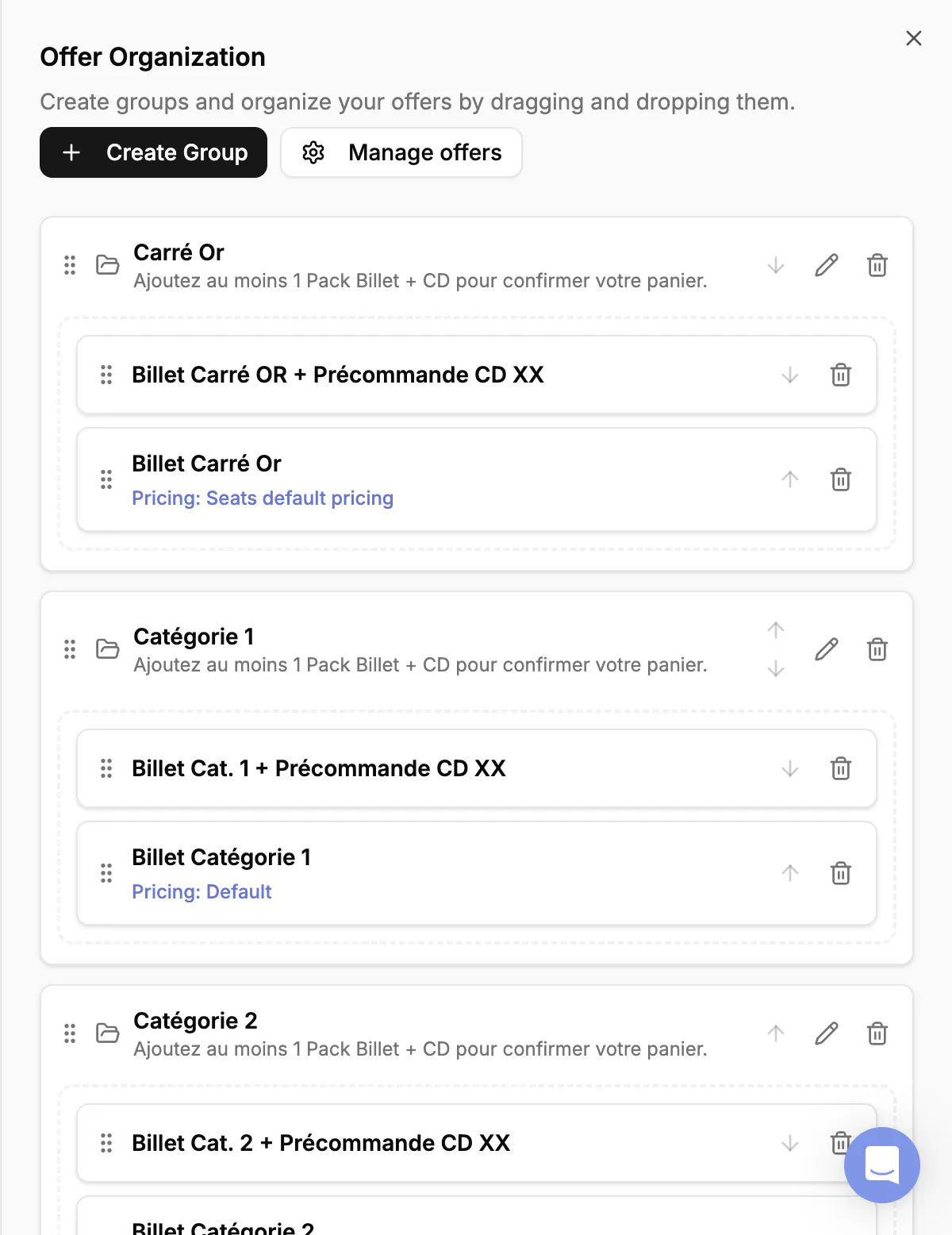
1. Accessing Offer Organization
- Open your event and go to Sales channels
- Select the channel you want to edit
- Click on Organize your offers
Your changes affect only what buyers see on this specific channel, not the underlying stock, pricing, or availability.

2. Manage offers, control visibility
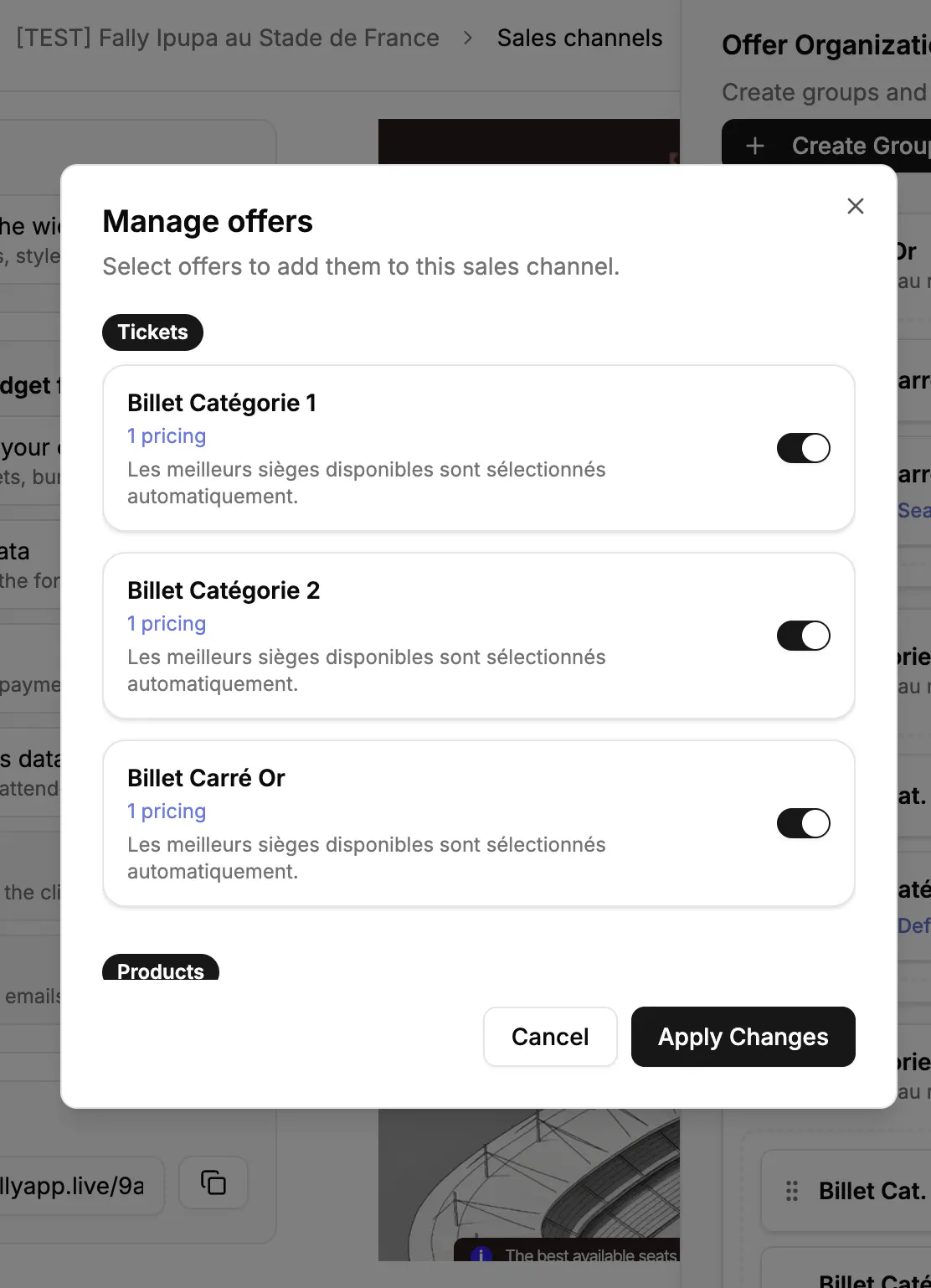
Use Manage offers to choose which tickets, products, or bundles appear in this channel.
Key behaviours that matter:
- Turning an offer OFF hides it only in this channel
- The offer remains active in Tickets & products
- Ideal for presales, staged releases, or hiding VIP tiers
- No need to delete categories or rebuild bundles
Use it when:
- You want a clean widget with only essential options
- You need an exclusive presale channel
- You're preparing bundles or Shopify products before launch
Click Apply Changes to update the widget.

3. Create Group, structure your offers
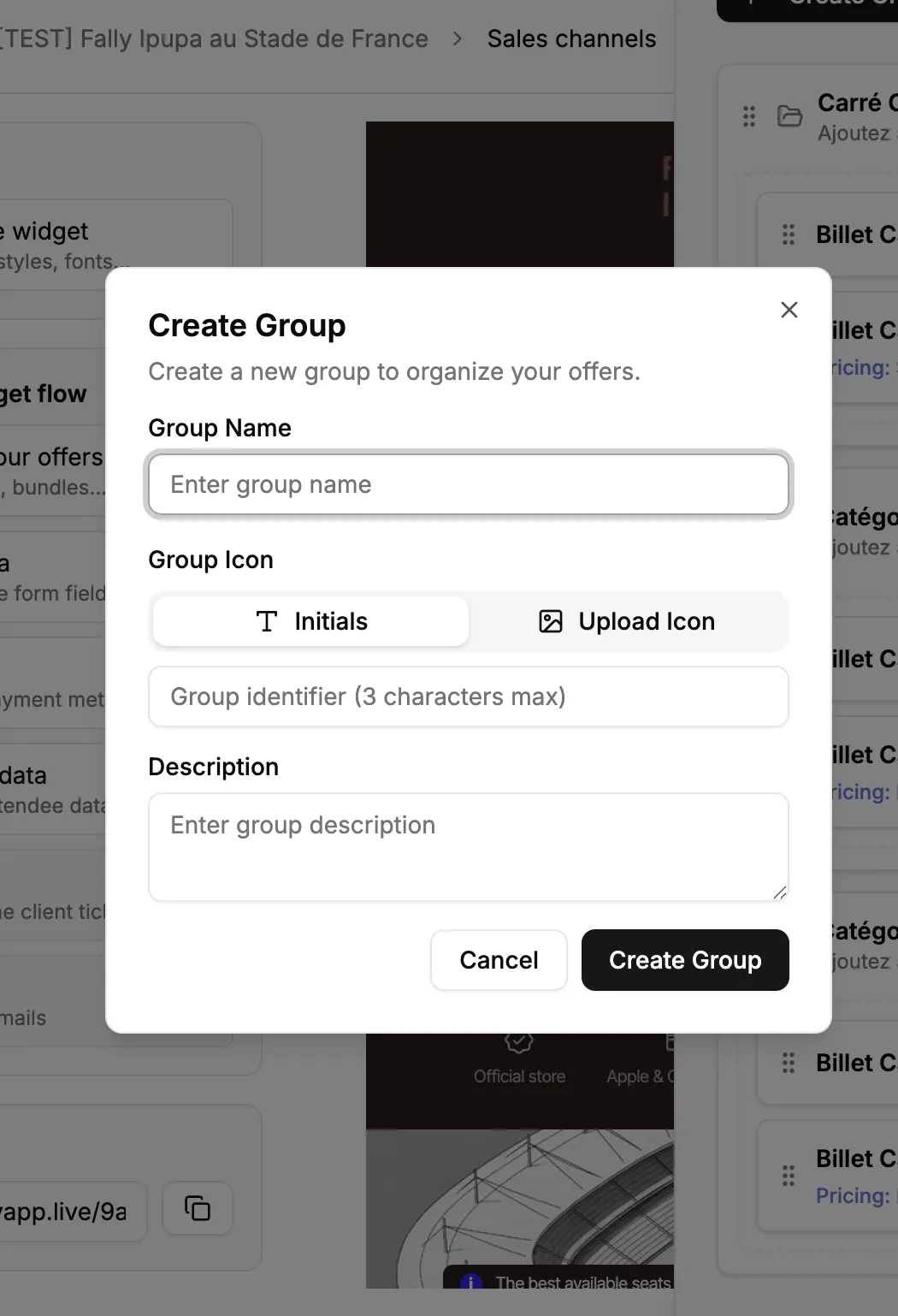
Use Create Group to organise offers into clear sections, especially helpful for large events or complex setups.
Groups allow you to:
- Structure the widget visually
- Separate seating zones, packs, or tiers
- Add rules or instructions (e.g. "Add at least 1 Pack Billet + CD to continue")
- Influence buyer flow more effectively than simply listing offers

4. Organize Offers Inside Groups
What actually makes a difference:
| Order defines buyer flow | The order inside a group is exactly how buyers see and interpret the choices. Use this to highlight premium options or promote bundles. |
|---|---|
| Offers can appear in multiple channels, but only once per group | This gives you flexibility to tailor each channel (public sale, presale, VIP) while keeping layouts clean. |
| Descriptions prevent confusion | Use them to explain constraints or behaviour: • "Add at least 1 Pack Billet + CD to continue" • "Best seats in this category are assigned automatically" These reduce hesitation and support requests. |
When groups are most useful:
- Seating categories: Cat.1, Cat.2, Carré Or
- Ticket + Product packs: enforce combos or upsells
- VIP vs GA separation: spotlight premium tiers
- Large catalogs: avoid overwhelming buyers
In Summary, use Manage Offers to Control visibility, Create Group to Structure and clarify your checkout experience and Drag and drop or reorder offers to tailor the buying experience. Witt Billy, you control exactly how your event appears to buyers without touching stock, pricing, or the underlying offers.