
Guests & Invitations Management
The Guests section in Billy lets you manage all your invitations from your Studio. Two distinct workflows cover different needs: Add Guest to add named guests whose information you already have, and Redeemable Invitations to send a quota of invitations to a contact who will distribute them themselves.
The Guests section in Billy lets you manage all your invitations from your Studio. Two distinct workflows cover different needs: Add Guest to add named guests whose information you already have, and Redeemable Invitations to send a quota of invitations to a contact who will distribute them themselves.
Open your event, then click Guests in the left navigation. You'll see a list of all your guests with their email, name, ticket category, status, and creation date. The search bar lets you filter by email, first name, or last name. Two buttons in the top right give access to both invitation workflows.
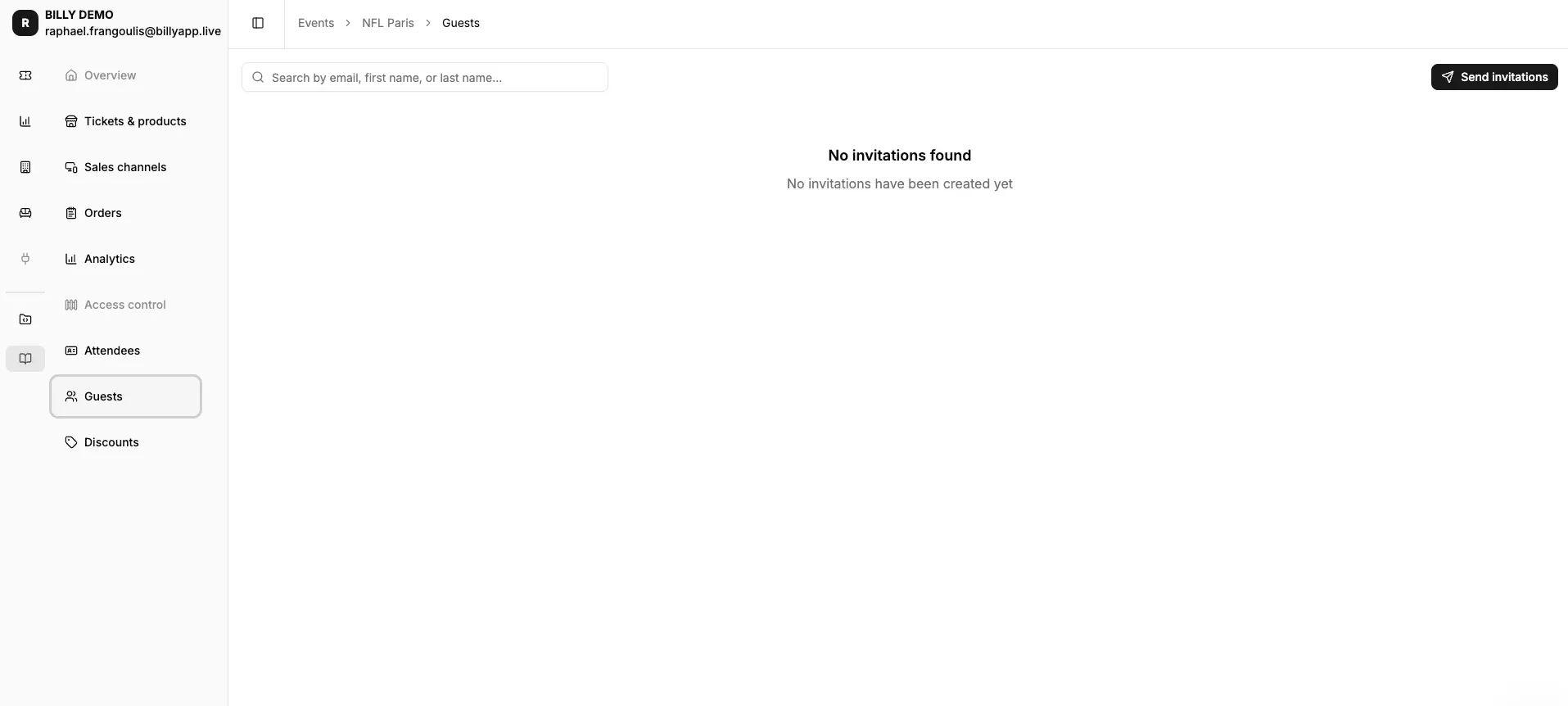

1. Add Guest
Add Guest is for inviting people whose contact details you already know: press, partners, VIPs. You enter their information and Billy sends them their tickets directly.
Select a ticket category
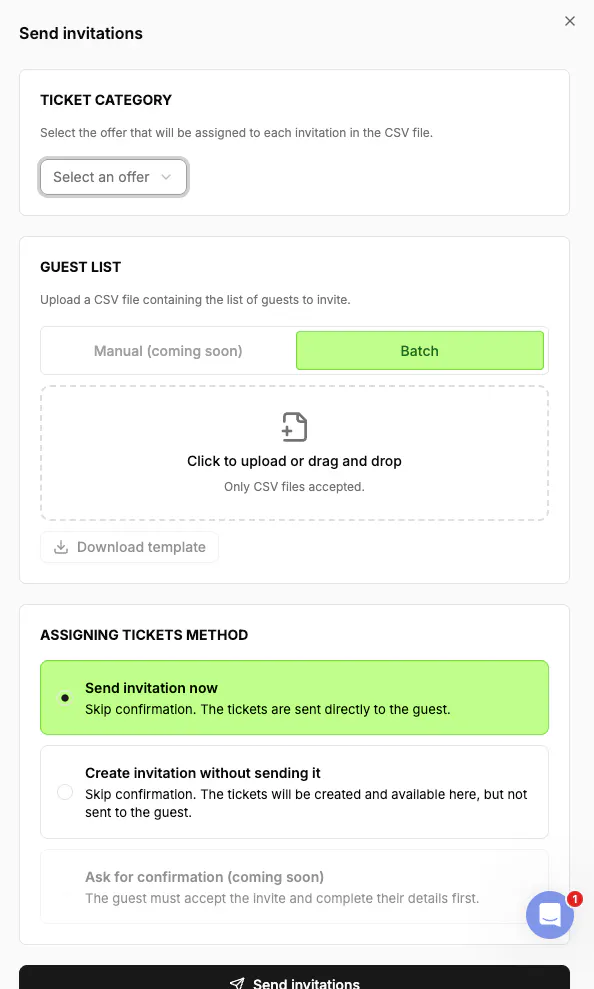
Click Add Guest then choose an offer from the Select an offer dropdown. Each category displays its availability (e.g., 498/500 remaining). All guests in the same batch receive the same category—to invite across multiple categories, send separate batches. Invitations count against your ticket inventory: check availability before sending.
Upload your guest list
Upload your contacts via a CSV file. The template automatically adapts to the selected category and the attendee form configured for it, ensuring you collect the right information (useful for badges or personalized tickets). Click Download Template, fill it with the required fields (email, first name, last name, phone number), then upload your CSV file.
Choose the allocation method
Three options let you decide how and when guests receive their tickets.
Send invitation now sends tickets immediately to each guest by email, ideal when your list is finalized.
Create invitation without sending it creates tickets and saves them to your guest list without sending anything. You can send them manually later, useful for preparing in advance or checking details.
Ask for confirmation (coming soon) will send an invitation that the guest must accept and complete before receiving their ticket, practical for managing RSVPs.

Send
Review your configuration (category, list, method), then click Send invitations. Your guests appear in the list with their status.
2. Redeemable Invitations
Redeemable Invitations covers a different need: sending a quota of invitations to a contact (sponsor, client, partner) for them to distribute to people of their choice. You don't need to know the final guests—the recipient handles redistribution, and each final guest enters their own information.
This is typically useful when allocating seats to a sponsor as part of a commercial agreement, when sending a batch of invitations to a client or partner, or when you don't know the final guests' identities in advance.

Create an invitation
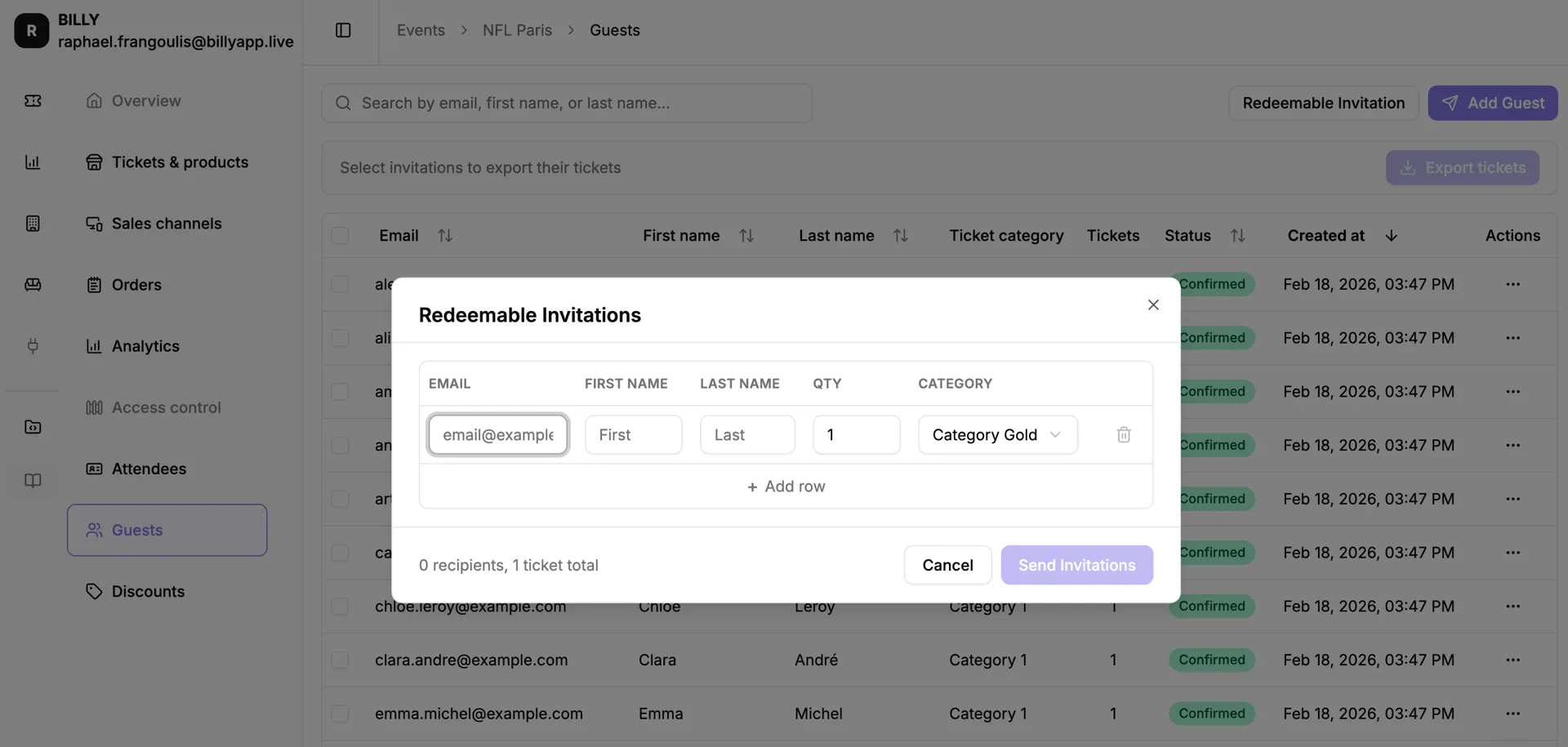
Click Redeemable Invitation at the top of the Guests page. A modal opens with a table where each row represents a recipient. For each row, enter the contact's email, first name, and last name, the quantity of tickets to allocate (the QTY field), and the ticket category via the dropdown (e.g., Category Gold, Category 1, Category 2).
You can add multiple recipients via + Add row—each row can have a different quantity and category. A counter at the bottom of the modal displays the total number of recipients and tickets in real time.
What happens on the recipient's side
Once the invitation is sent, the recipient receives an email with a link to access their invitations. They can then distribute them to people of their choice. Each final guest will be asked to enter their own information, and you don't need to enter anything on your side for these people.
Send
Review the information in the table, then click Send Invitations. The summary at the bottom of the modal (e.g., "1 recipient, 15 tickets total") lets you confirm before sending.
Manage your guest list
Whether guests added via Add Guest or tickets from Redeemable Invitations, all appear in your event's Guests section. You can search by email, first name, or last name, and check each invitation's status. The Export tickets option lets you export tickets for selected guests.