
Edit Order Details
Use Edit Orders, Resend Confirmation Emails, and Cancel Orders to manage post-purchase changes and customer support requests directly from your Billy Studio. These tools let you update customer information, resend tickets, and cancel orders without requiring buyers to contact support.
Use Edit Orders, Resend Confirmation Emails, and Cancel Orders to manage post-purchase changes and customer support requests directly from your Billy Studio. These tools let you update customer information, resend tickets, and cancel orders without requiring buyers to contact support.
This is useful when you want to:
- Fix typos in customer names or email addresses
- Update contact information after a ticket transfer
- Resend confirmation emails to customers who didn't receive them
- Cancel and refund fraudulent, duplicate, or refund-requested orders
- Resolve customer service issues quickly without manual workarounds
1. Accessing Order Details
- Open your event and go to Orders
- Browse the order list or use the search bar to find a specific order
- Click the arrow (→) under Actions on the right side of any order row
The Order details panel opens, showing the complete order information including order number, items, payment details, and customer information.
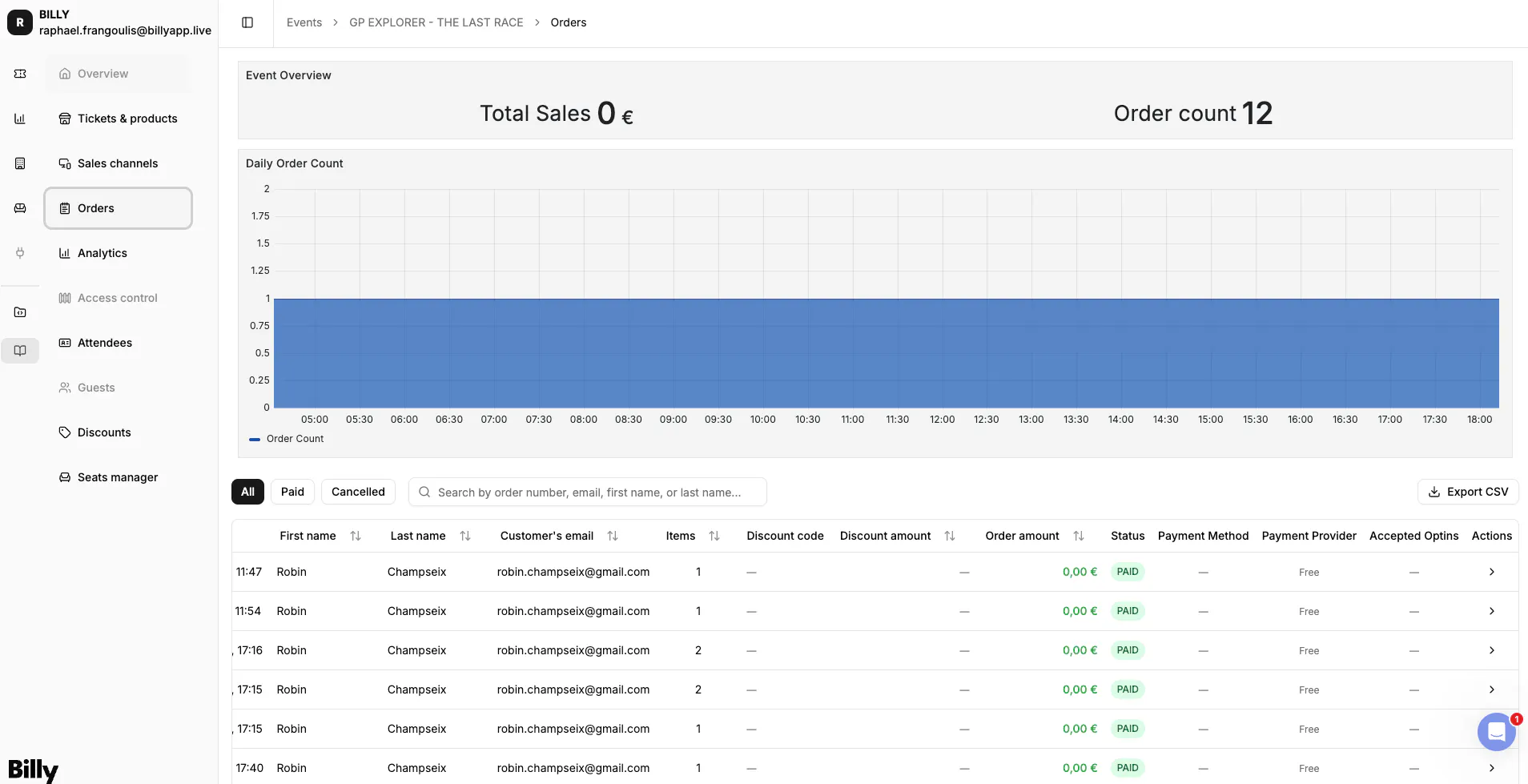

2. Resending Confirmation Emails
If a customer didn't receive their confirmation email or needs it resent:
- Open the order details panel
- Click More actions (top right)
- Select (re)send confirmation email
What happens:
- Billy immediately sends a new confirmation email to the customer's registered email address
- The email contains all tickets and order details
- No changes are made to the order itself
When to use this:
- Customer claims they never received their tickets
- Email went to spam or was deleted
- Customer changed devices and needs tickets resent
- Tickets were purchased by someone else and need forwarding
Pro tip: Always verify the email address is correct before resending. If the email is wrong, edit the contact information first (see below), then resend.
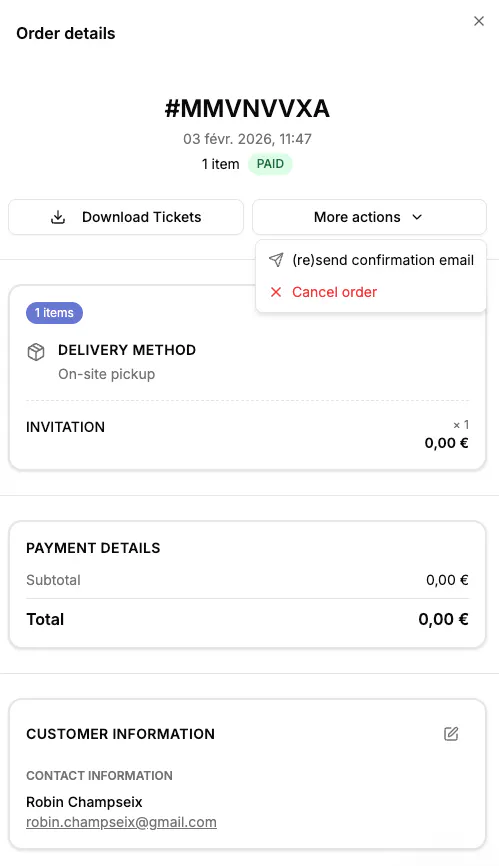

3. Cancelling an Order
To cancel an order, invalidate all associated tickets, and process a refund:
- Open the order details panel
- Click More actions (top right)
- Select Cancel order
- Confirm the cancellation
What happens:
- The order status changes to "Cancelled"
- All tickets associated with this order are immediately invalidated
- Tickets can no longer be scanned or used for entry
- Stock is returned to the available inventory
- A refund is automatically initiated through your payment provider
When to use this:
- Processing a customer refund request
- Removing duplicate orders
- Cancelling fraudulent purchases
- Invalidating tickets after a chargeback
Important: The refund is processed automatically, but timing depends on your payment provider (Stripe, PayPal, etc.).
Pro tip: Inform customers that while the refund is processed immediately on your end, it may take several days to appear in their account depending on their bank's processing time.
4. Editing Customer Contact Information
To update customer details on an existing order:
- Open the order details panel
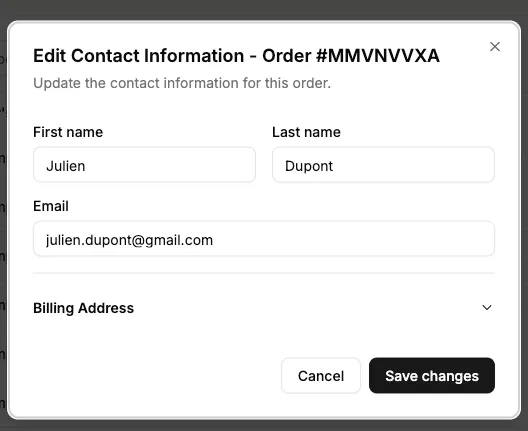
- In the Customer Information section, click the edit icon (pencil)
- The Edit Contact Information modal appears
You can update:
- First name
- Last name
- Email address
- Billing address (expand to edit)
- Make your changes
- Click Save changes
What happens:
- The order is updated with the new information
- If you changed the email address, future communications go to the new email
- Already-sent emails are not automatically resent, use the resend feature if needed

5. Best Practices
Always verify before cancelling
Confirm the cancellation request is legitimate. Once cancelled, orders cannot be restored.
Communicate refund timing
Let customers know that while the refund is processed immediately, it may take 5-10 business days to appear in their account.
Document cancellations
Keep records of why orders were cancelled for accounting and reconciliation purposes.
Check before editing
Confirm change requests are legitimate, especially for email address changes, to prevent unauthorized ticket transfers.
Check spam folders first
Before resending emails, ask customers to check spam/junk folders where confirmation emails often end up.
Update then resend
If you need to change contact information and resend tickets, always edit first, save, then resend to ensure the email goes to the correct address.
Use search efficiently
Search orders by email, name, or order number to quickly locate the right order without scrolling.
In Summary
With Billy's order management tools, you can handle all common customer support scenarios directly from your Studio, update contact information, resend tickets to customers who didn't receive them, and cancel orders with automatic refunds, all without external tools or manual processes.