
Create Multiple Sales Channels
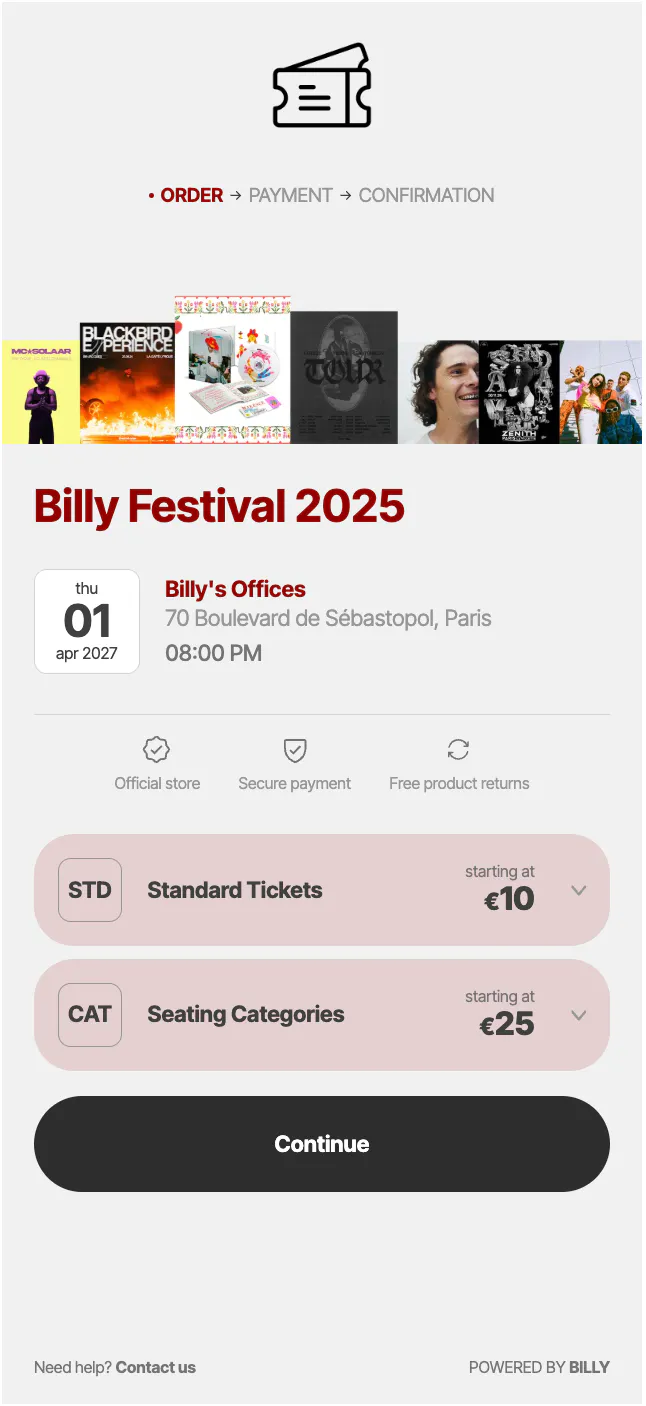
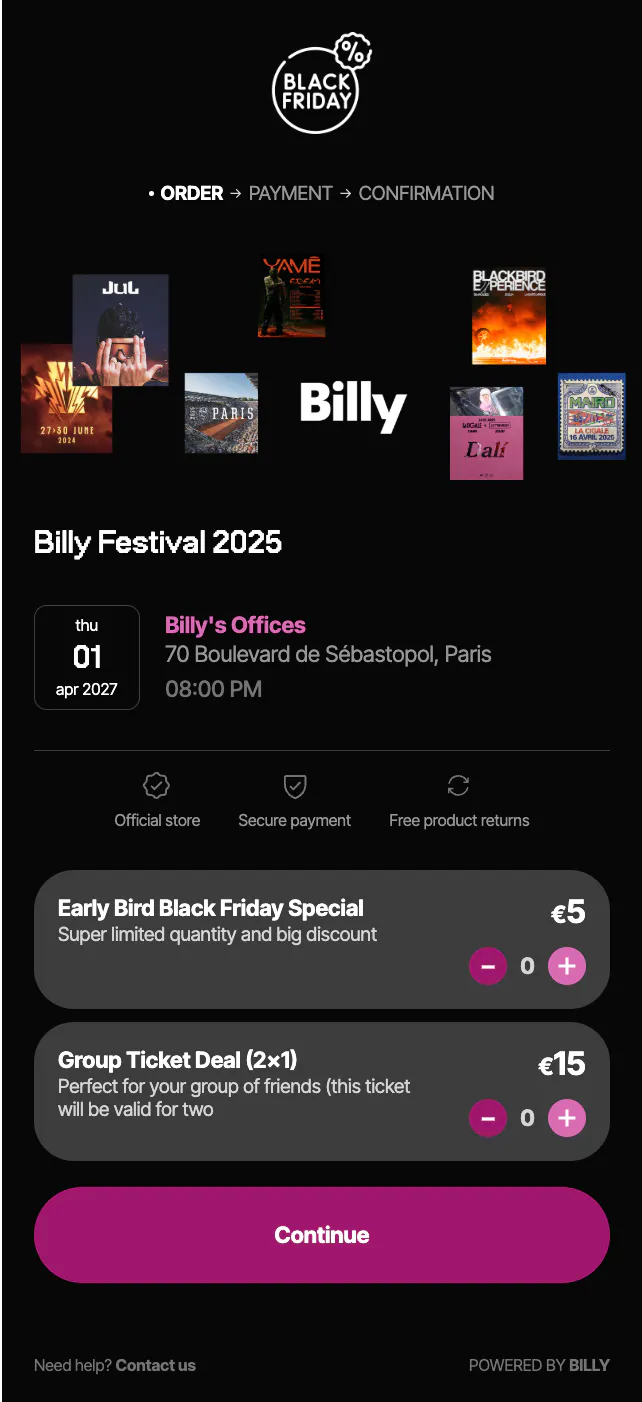
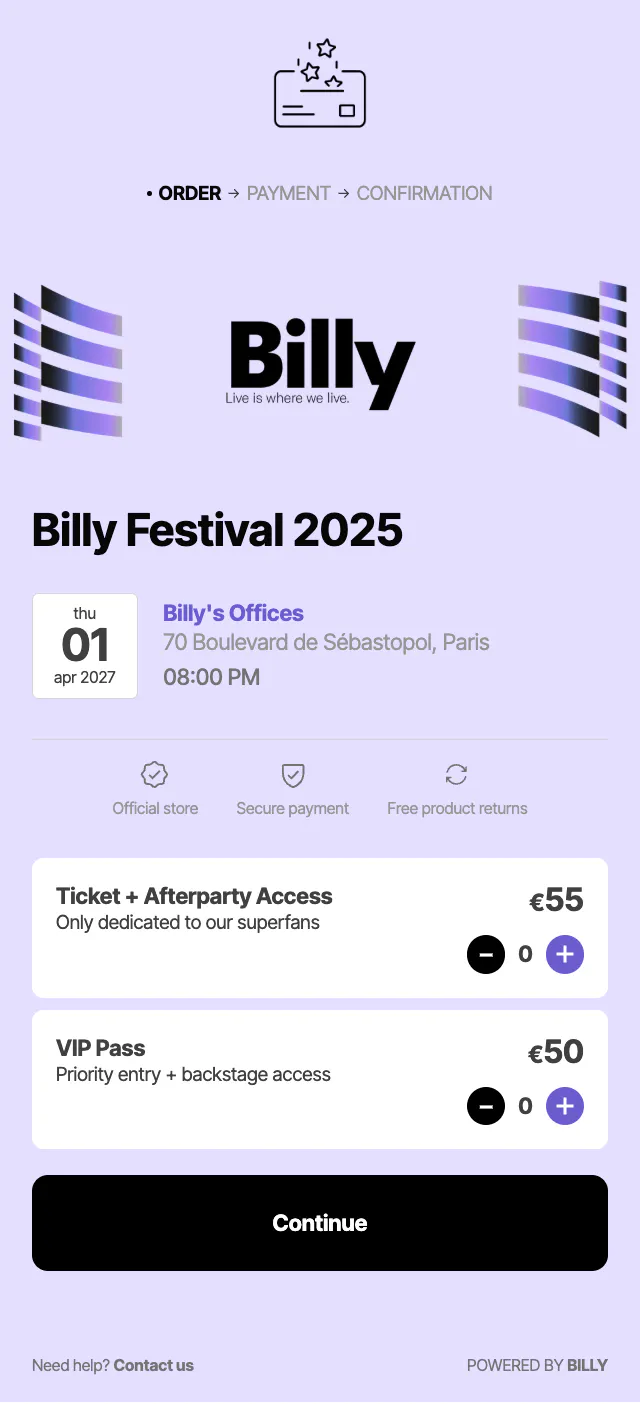
Selling through just one channel limits growth. Fans all see the same offers, premium tickets get lost, and you can’t activate partners or special campaigns. The result: less visibility and lower conversion rates. That’s why we built Sales Channels.
Selling through just one channel limits growth. Fans all see the same offers, premium tickets get lost, and you can't activate partners or special campaigns. The result: less visibility and lower conversion rates. That's why we built Sales Channels.
With Billy, you can create multiple distribution strategies, selling on your own website, through partners, on a venue's shop, or even an artist's store. You multiply visibility while keeping all sales and stats unified in one platform.
Let's see how below 👇
Create a New Sales Channel
1. Getting Started
- In the Studio, open your event
- Go to the Sales Channels tab
- In the top-right corner, click Create Channel (or edit existing ones)


2. Fill in the Channel Details
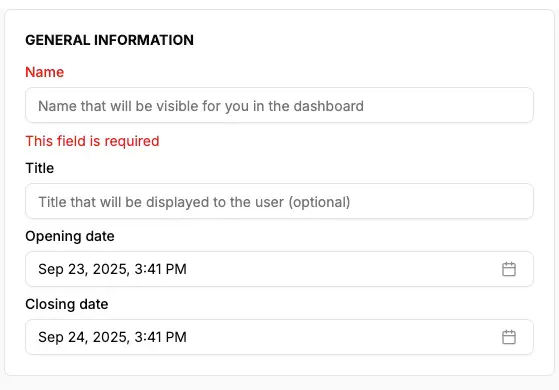
Under General Info, complete the basics:
- Channel name → internal label for you and your team
- Public title → what fans will see at checkout
- Opening & closing dates → optional, useful for temporary campaigns (e.g. presales or Black Friday)
⚠️ Important: If you don't set an end date, the channel will stay live indefinitely.

🎯How You Can Use Sales Channels
Here are some ways organizers typically use multiple sales channels:
| Channel Type | How to Use It |
|---|---|
| Main Website | Your default shop, open to all visitors |
| VIP Channel | Exclusive link for premium offers, accessible only to top fans or invited guests |
| Superfan Channel | Hidden drops or early access for your community, newsletter subscribers, or fan club |
| Partner Channel | A dedicated shop for sponsors, venues, or distributors, with offers tailored to them |
| Campaign Channel | Time-limited checkouts (e.g. Flash Sales, Black Friday, artist presales) |
💡 Tip: Use different channels to create a more personal journey. For example, send superfans a hidden presale link while running a general campaign for everyone else.



🔗 Share or Embed Your Channel
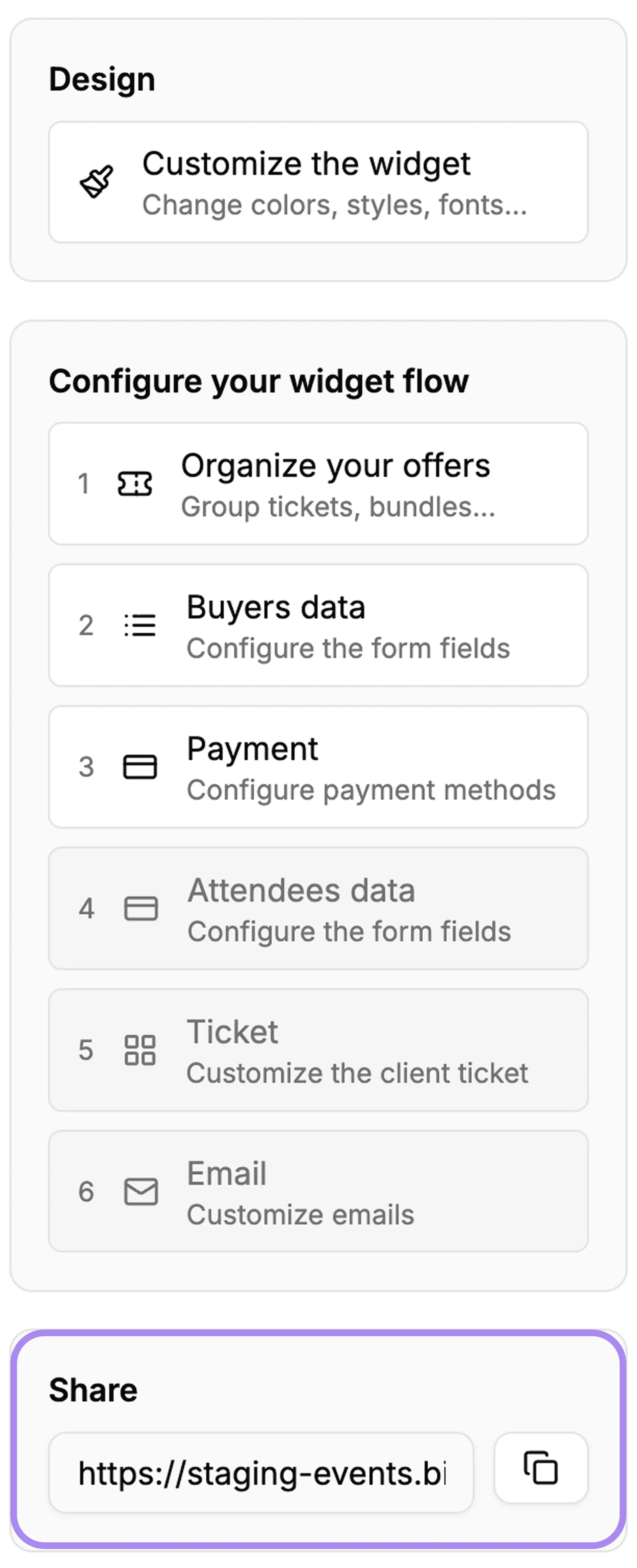
When you create and publish a sales channel, Billy automatically generates your sales channel ID and the link URL.
- A link (URL)
- This is the web address of your channel.
- You can copy it and share it with the audience you want (partners, VIP guests, newsletter subscribers, etc.).
- You'll find it in the Sales Channel page, at the bottom left, once the channel is published.
- A widget embed code
- Each channel also has its own unique widget.
- This allows you to embed the channel directly on your website, for example, on your homepage for everyone, or on a hidden page only for VIPs.
- The widget ensures each audience sees only the offers you've chosen for that channel.
- The Sales Channel ID
- This is the long code at the end of your channel URL.
- It's required if you want to integrate the widget manually into a site.
Example URL: https://events.billyapp.live/12b8b09a-eb23-4d65-ba92-f8059cb18648
→ Here, 12b8b09a-eb23-4d65-ba92-f8059cb18648 is your Sales Channel ID.

Why this matters
- You can run different promotions at the same time (e.g. public sales + private presales).
- Each audience gets a checkout that's clear and personalized for them.
- All sales still flow into one single dashboard, so you never lose track.