
Collect Buyers’ Information
Collecting the right buyer information during checkout is essential to understanding your audience, personalizing your marketing, and running your event efficiently.
Collecting the right buyer information during checkout is essential to understanding your audience, personalizing your marketing, and running your event efficiently.
In Billy, you can customize which data you collect during checkout, such as name, email, age, or country, so you gather only the information that's truly useful for your event and your CRM.
This information, filled in by the buyer during checkout, helps you:
- Build a clearer profile of your audience in your CRM (location, demographics, engagement).
- Tailor your marketing and communication based on customer data.
- Simplify on-site operations like ticket validation or customer support.
👥 Buyer vs. Attendee: What's the Difference?
- Buyer → The person making the purchase. This could be a single fan buying multiple tickets for friends or family.
- Attendee → The person actually attending the event. Each attendee may have their own details (like name, age, or country).
💡 Example:
If one person buys three tickets for themselves and two friends:
- The buyer fills out their contact and payment information.
- Each attendee can have their own form fields (e.g. name, age, or country) depending on how you've configured your ticket settings.
This way, you collect both buyer and attendee data, giving you complete visibility into who your customers are and who's actually attending your event.
⚙️ How to Configure Buyer Information
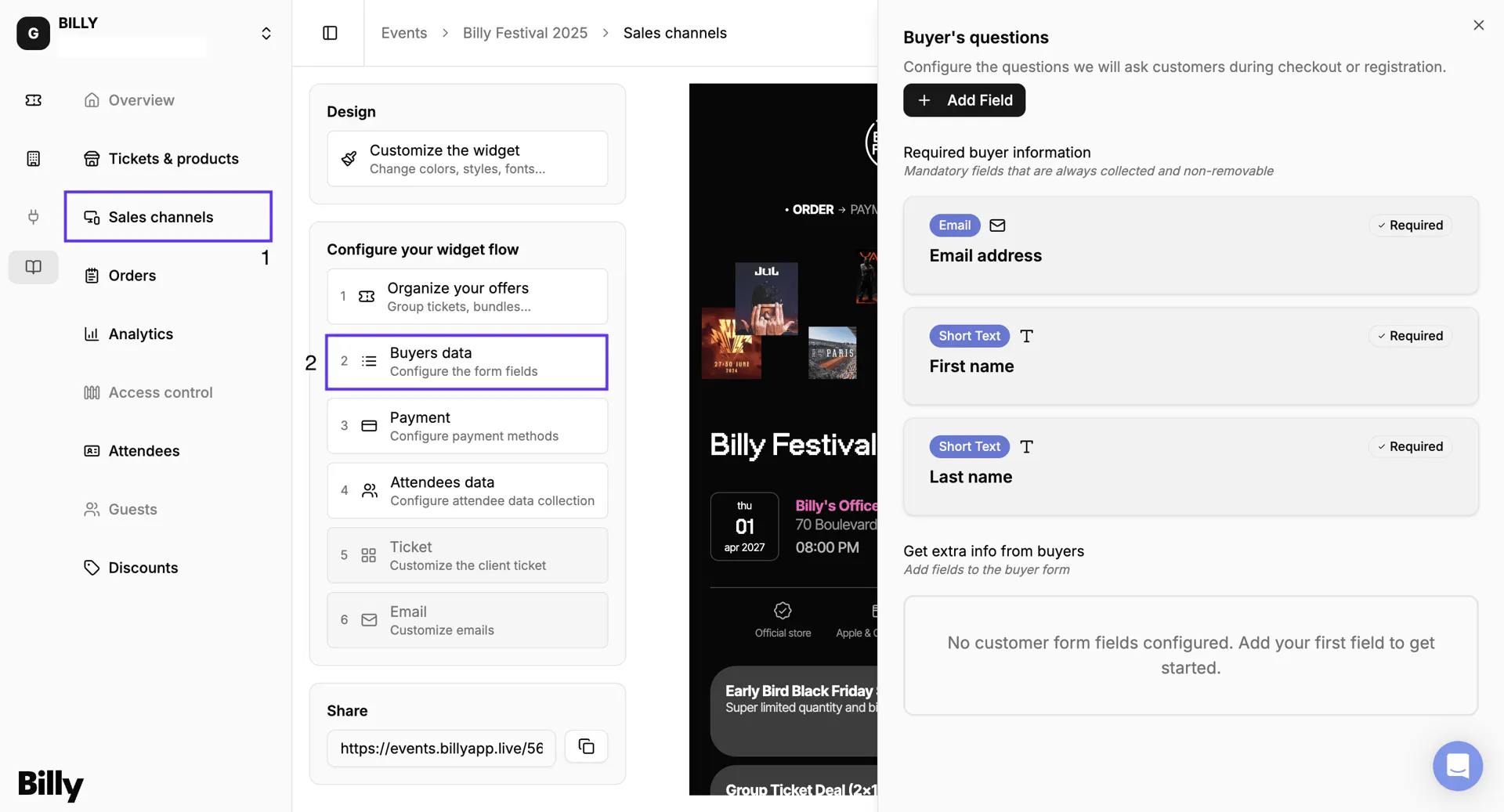
- Go to Sales Channels in Billy Studio.
- Click on Buyer Data.
- You'll see the fields already collected by default:
- Email address
- First name
- Last name
These are mandatory fields and cannot be removed, they're required to process orders and send ticket confirmations.

➕ Add More Fields
If you want to collect additional information from your buyers, you can add custom fields to the checkout form.
Click on Add Field, and select what you'd like to include:
Here, you can select the type of information you'd like to collect. Common contact fields — like Phone, Birth date, and Address — come as ready-made presets that pre-fill the right type and settings, so you just add them:
| Field | Description | Example use |
|---|---|---|
| Age | Number input | Check buyers' age for restricted events (e.g. 18+). |
| Country | Dropdown list | Know where your buyer is coming from. |
| Email Address | Text input | Collect contact info for follow-ups or confirmations. |
| Gender | Dropdown list | Optional demographic insights. |
| Multi Select | Multiple choice selection | Ask how buyers heard about your event (e.g. social media, newsletter). |
| Phone Number | Number input | Collect phone numbers for last-minute updates or logistics. |
| Short Text | Single-line text field | Open question like "What's your favorite artist?" or "Who invited you?" |
| Text | Single- or multi-line text field | A free-text note or open question. |
| Number | Numeric input | Party size, age, or any count. |
| Date | Date picker | Birth date or a travel date. |
| URL | Link input | Portfolio, company site, or social link. |
| Boolean | Yes/no toggle | A simple opt-in or consent question. |
| Single Select | Choose one option | Meal preference or t-shirt size. |
| Address | Postal address (line 1/2, city, postal code, country) | Shipping or billing address. |
💡 Tip: Ask only for the information you truly need, shorter forms mean a faster, more enjoyable checkout for fans.
Best Practices
- Keep your form short and simple, too many questions can lower conversion rates.
- Use Multi Select for structured answers instead of open questions.
- For professional or VIP events, consider asking for company name or phone number for logistics.
- Avoid making non-essential fields mandatory.
🛒 Checkout Experience
Once you've set up your buyer fields, here's what fans will actually see during checkout:
- Mandatory fields (First Name, Last Name, Email) are always displayed.
- Any extra fields you've added (Age, Country, Gender, etc.) will appear directly in the form.
- Buyers must complete all required fields before they can finalize their purchase.
- Optional fields will show up, but buyers can skip them.
📂 Buyer Data is Stored in Back Office
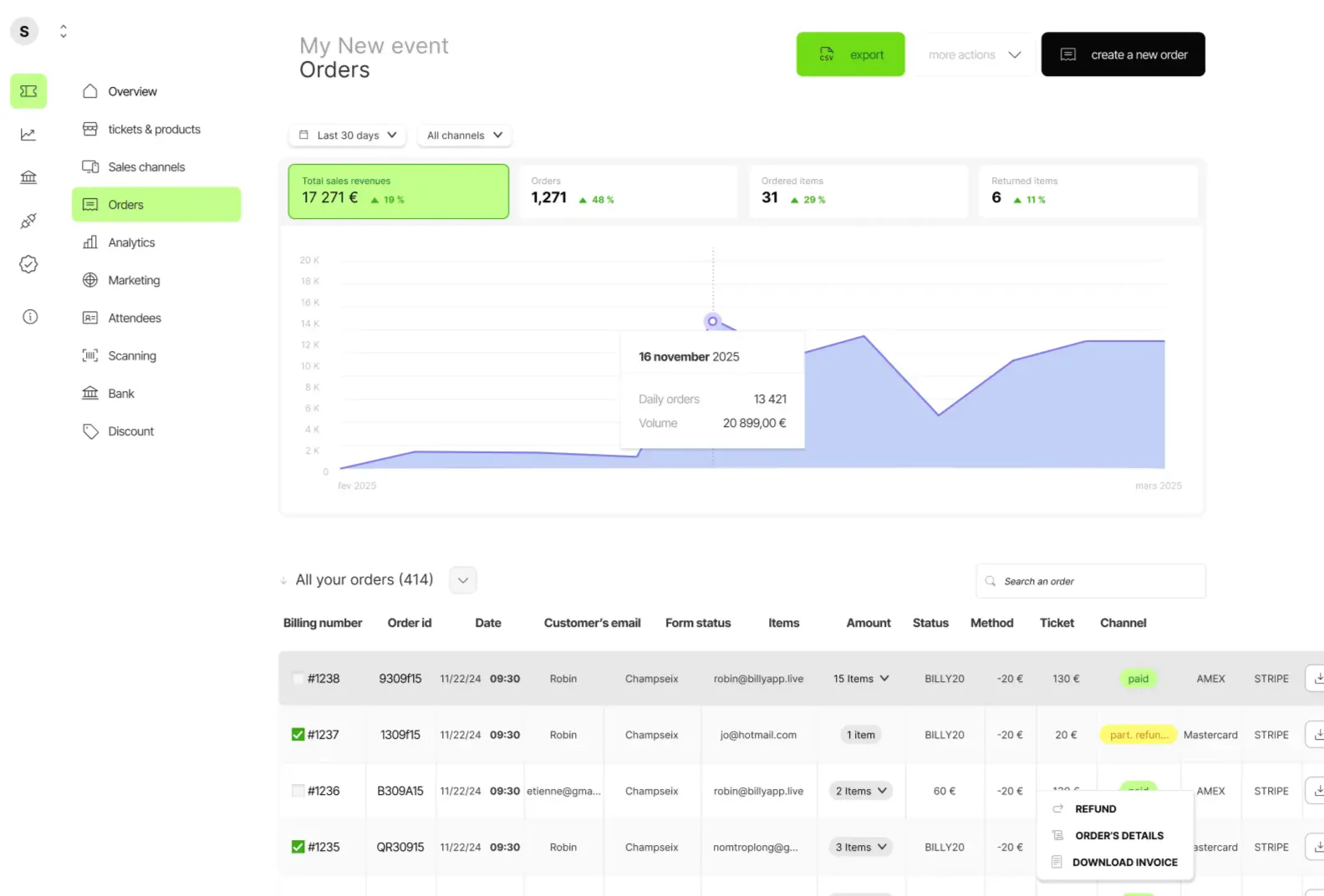
All buyer information collected during checkout is securely stored in your Billy back office.
You can access it at any time under Orders.

Summary
- All buyer data is centralized in your back office.
- You can search, export (coming soon), or analyze it anytime.
- It helps you better understand your customers and improve your future events, safely and efficiently.
Unsupported Features
To avoid confusion, here's what is not supported:
- ❌ Conditional questions or branching logic (questions that depend on previous answers).
- ❌ Disabling the mandatory fields (First Name, Last Name, Email) - these are always collected.
🎉 Wrapping Up
By customising your buyer data form, you get exactly the information you need: nothing more, nothing less.
It's a simple way to better understand your audience, improve communication, and make your event operations smoother.
👉 All your data stays organized, secure, and ready to use directly inside Billy Studio.